

Plans & subscriptions
Manage subscriptions
How to assign, confirm, edit and cancel subscriptions in Inspow, and what each status means.
A Subscription connects a User (the one who pays) and, optionally, a Beneficiary (the one who uses the service) with a plan. From it, the invoices are generated and attendance is validated.
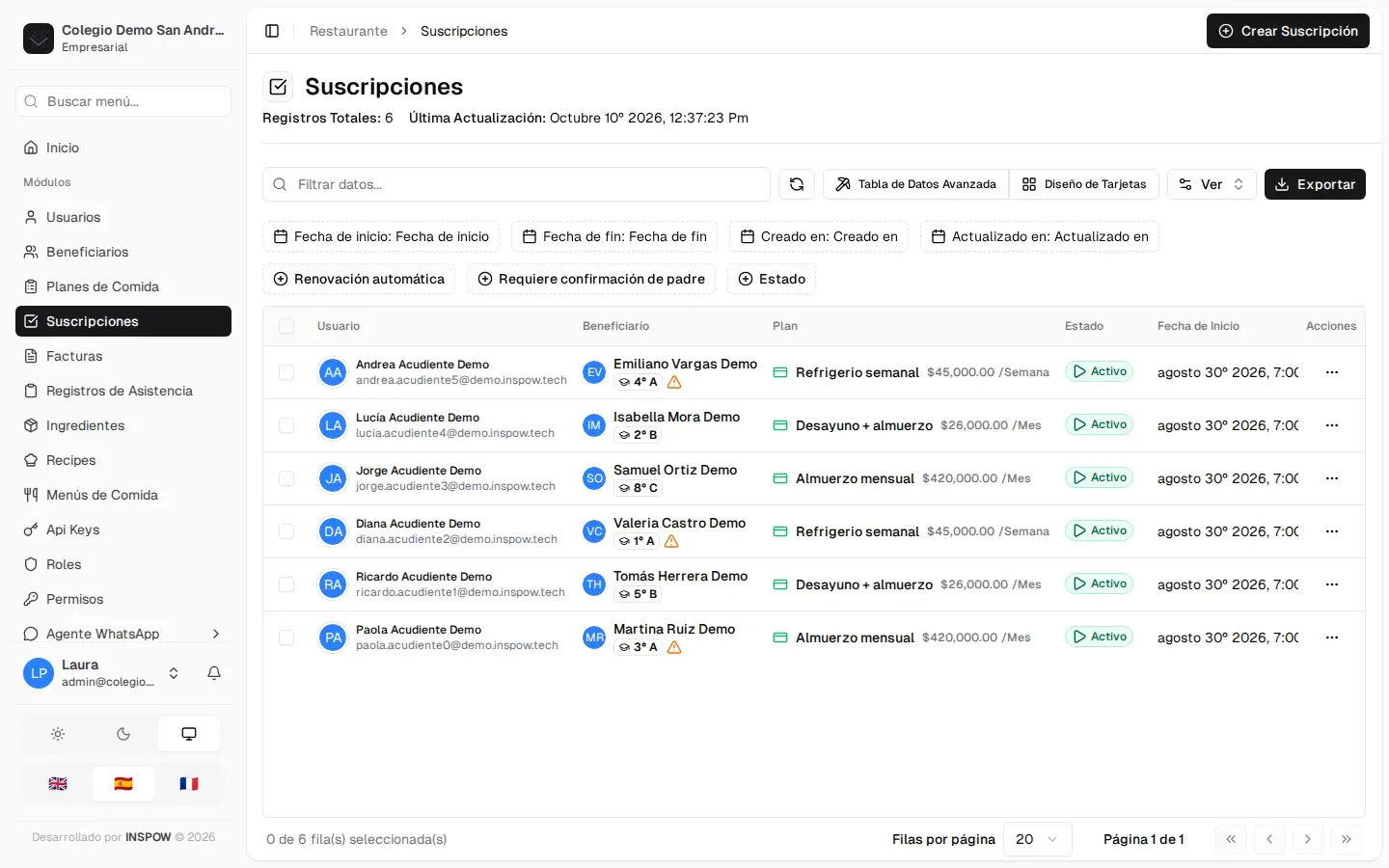
Depending on your sector, the menu calls them Subscriptions, Memberships or Enrollments.
Assign a subscription
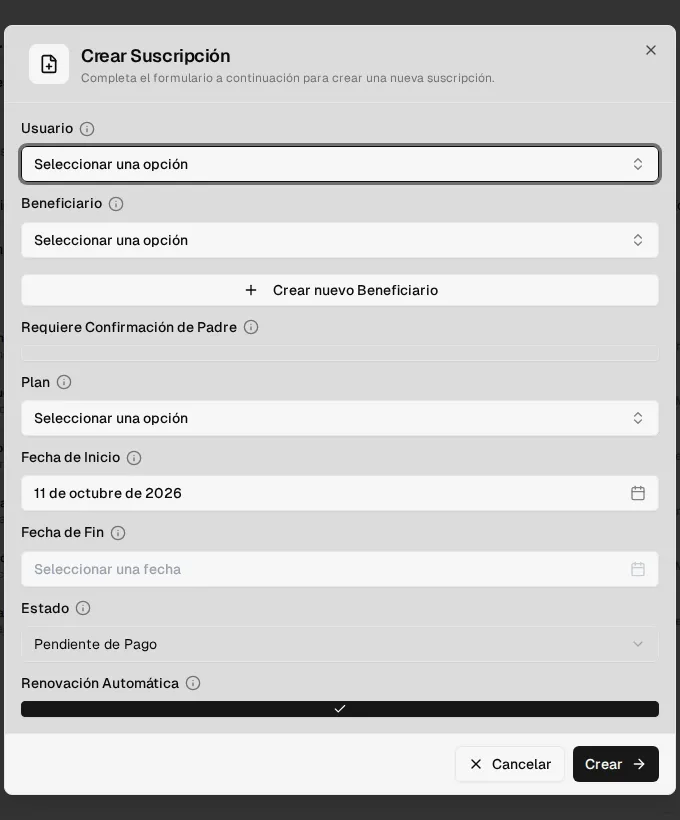
Section titled “Assign a subscription”Click Create Subscription and fill in:
- User: the one who pays and receives the invoices.
- Beneficiary: who it covers (optional). If they don’t exist yet, Create new Beneficiary creates them without leaving the form. The user is added as a responsible of the beneficiary.
- Requires Parent Confirmation: if you turn it on, the subscription starts as Pending Parent Confirmation until the guardian confirms it.
- Plan, Start Date (required) and End Date (optional; if you leave it empty it is calculated with one period of the plan).
- Initial Status and Auto Renew.
Actions on each subscription
Section titled “Actions on each subscription”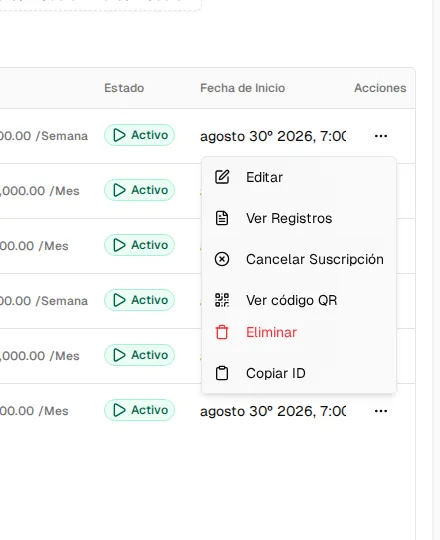
- Edit: change dates, plan or Status (for example, to Suspended to stop billing).
- View Logs: the subscription’s change history.
- Confirm Parent: appears when it is waiting for the parent or guardian’s confirmation (who can also confirm it from the link they receive by email).
- Cancel Subscription: asks for a Cancellation Reason and optional notes.
- View QR Code: the code the person uses to record their attendance (only on active subscriptions).
Subscription statuses
Section titled “Subscription statuses”| Status | Meaning |
|---|---|
| Draft | Created but not yet running. |
| Pending Parent Confirmation | Waiting for the guardian to confirm it. |
| Pending Payment | Waiting for the first payment; when the first invoice is paid it becomes Active. |
| Active | Running. |
| Suspended | Paused: new periods are not billed. |
| Cancelled | Ended by your team, with its reason. |
| Expired | Ended. Today it is set by hand: it doesn’t change on its own when the end date arrives. |