

WhatsApp Agent
Connect the WhatsApp number
Register your organization's WhatsApp Business number, test it and understand the channel states.
The agent answers on your organization’s WhatsApp number, not a shared one. This screen (WhatsApp Agent → Settings → Connection) shows the channel status and lets you connect, test and disconnect it.
You need the role with the manage:wa-channel permission (included in wa-admin).
Registering the number (guided Meta flow)
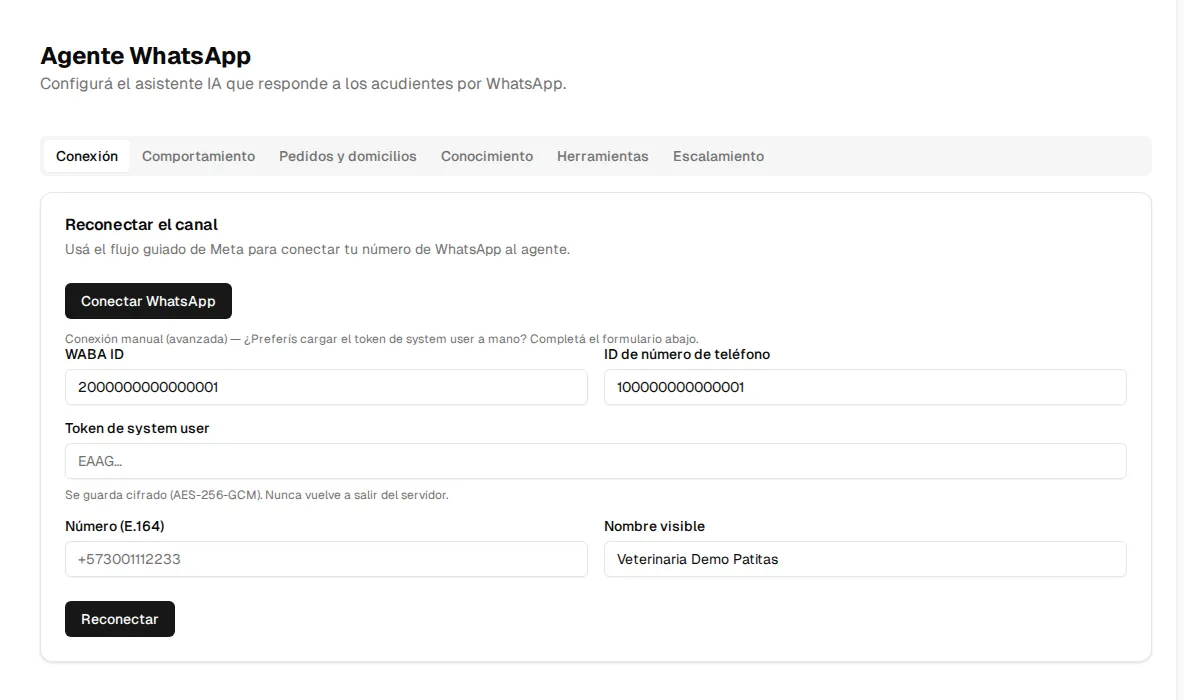
Section titled “Registering the number (guided Meta flow)”The recommended setup is Meta’s guided flow (Embedded Signup): from the Connection screen you open a Meta window, log in with your organization’s account and follow the steps to create (or connect) the WhatsApp Business Account and the number. When you finish, Inspow receives the authorization and configures everything automatically — no manual credential copying.
Manual setup (plan B, assisted)
Section titled “Manual setup (plan B, assisted)”If the guided flow does not apply to your case, the setup can be done assisted by the Inspow team, loading the credentials on the Connection screen:
| Field | What it is |
|---|---|
| WABA ID | The identifier of your organization’s WhatsApp Business Account on Meta. |
| Phone Number ID | The identifier of the number within that account (the key Inspow uses to route your messages). |
| System user token | The credential that authorizes Inspow to send and receive messages on your number. It is stored encrypted and is never shown again. |
| Phone (E.164) | The number in international format (e.g. +573001112233), for display in the panel only. |
| Display name | How you want the channel identified inside Inspow. |
The connected channel
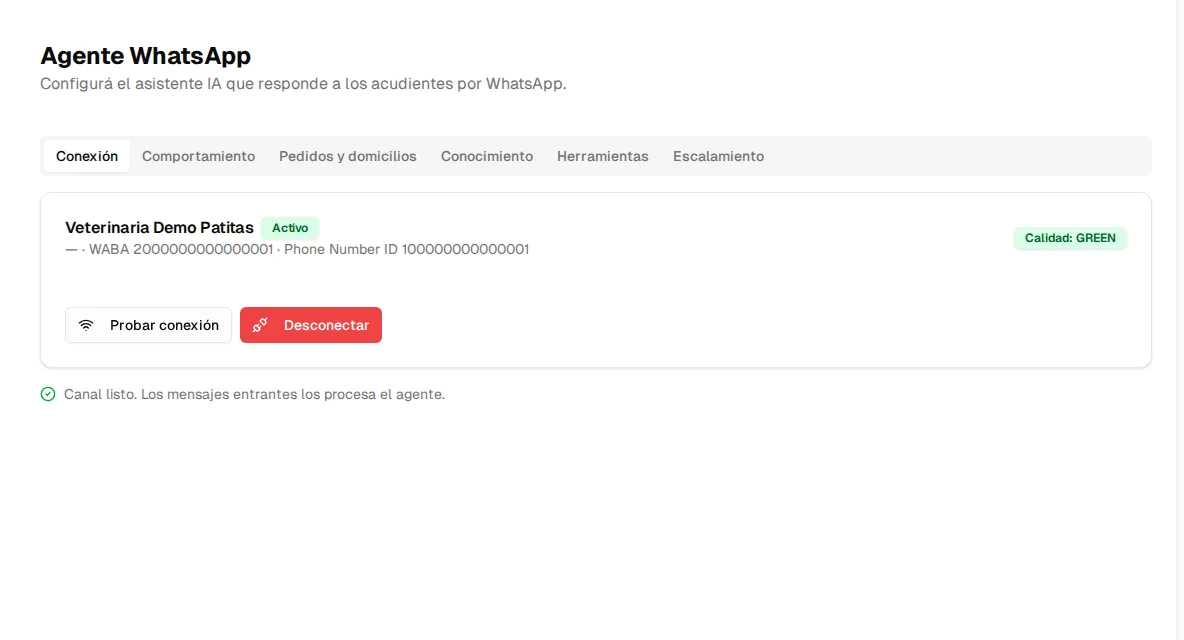
Section titled “The connected channel”With the channel active, the screen shows the display name, the WABA ID and the Phone Number ID, the status, the number’s quality and, when Meta reports it, its messaging limit (how many distinct users it can contact per day with templates).
Testing the connection
Section titled “Testing the connection”The Test connection button validates the token and the number directly against Meta and refreshes the quality rating. Use it after connecting and whenever you suspect something changed on Meta’s side.
Channel states
Section titled “Channel states”| State | What it means | What to do |
|---|---|---|
| Active | All good: incoming messages are processed. | Nothing. |
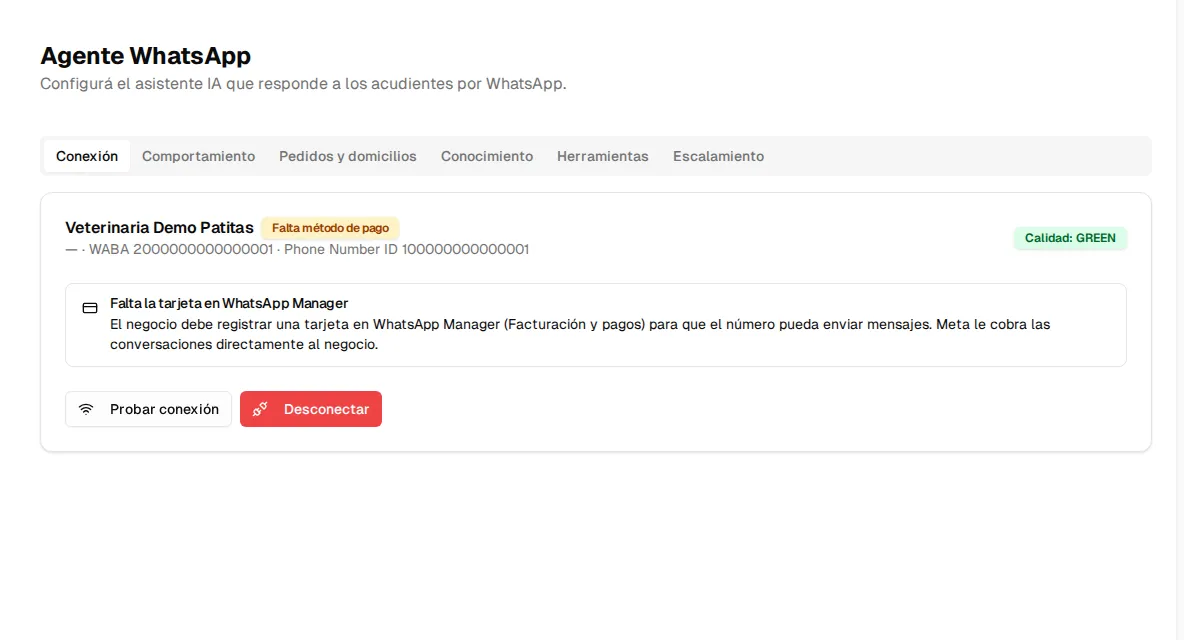
| Pending payment method | The number is connected but Meta has no card on file yet, so it cannot send certain messages. | Register the card (steps below). |
| Restricted by Meta | Meta limited the account for policy reasons. | Check WhatsApp Manager before reactivating the agent. |
| Disconnected | The channel was disconnected from Inspow. | Reconnect whenever you want; history is kept. |
If Meta returned an error while using the channel, a “Last channel error” box also shows up with the details: use it to know what to check before testing again.
Registering the card in WhatsApp Manager
Section titled “Registering the card in WhatsApp Manager”-
Open WhatsApp Manager with your organization’s Meta account.
-
Go to Billing & payments.
-
Add a valid payment method (credit or debit card).
-
Back in Inspow, use Test connection to refresh the state.
Number quality (quality rating)
Section titled “Number quality (quality rating)”Meta rates every number GREEN / YELLOW / RED based on user reports and blocks. The screen shows the current rating.
Disconnecting
Section titled “Disconnecting”Disconnect stops message processing for your organization (whoever writes will get no reply from the agent). Conversation history is kept. You can reconnect the same number later.