

WhatsApp Agent
Appointments over WhatsApp
Agent-managed booking — bookable services, available times, capacity, automatic reminders and the appointments screen.
With the Appointments tool enabled, your customers book, reschedule and cancel slots by chatting with the agent, no calls or spreadsheets. The agent only offers genuinely available times and the system prevents two people from taking the same seat.
Setting up bookable services
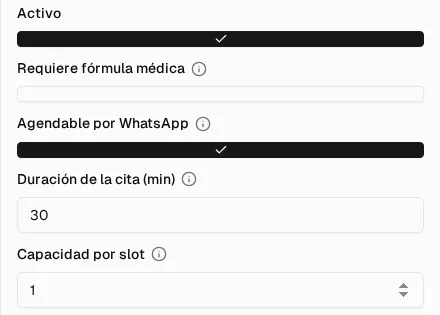
Section titled “Setting up bookable services”A bookable service is a product in your price list (Products module) with the Bookable via WhatsApp box checked. When editing it you define:
| Field | What it defines |
|---|---|
| Appointment duration (min) | The length of each slot. Times are offered in blocks of this duration. |
| Capacity per slot | How many people can take the same time (e.g. a bath and grooming service with 2 stations). With capacity 1 the slot is exclusive. |
Slots are offered within the agent’s business hours (Behavior): the hours and days you configure there. If you have not configured hours, 8:00 a.m. to 6:00 p.m. every day is used.
How the customer books
Section titled “How the customer books”In the chat, the agent:
- Offers the service’s available times: future only, within business hours and subtracting already-taken seats.
- Books the slot with the chosen time and any notes the customer adds. The appointment is Booked.
- Can reschedule or cancel the slot if the customer asks.
The appointments screen
Section titled “The appointments screen”In WhatsApp Agent → Appointments you see all appointments, with the service, the date and time, the customer’s number and its status. A label shows whether it is an appointment or a vaccine, and for services with capacity greater than 1 the slot’s occupancy appears (for example 1/2 booked). The list refreshes on its own every few seconds.
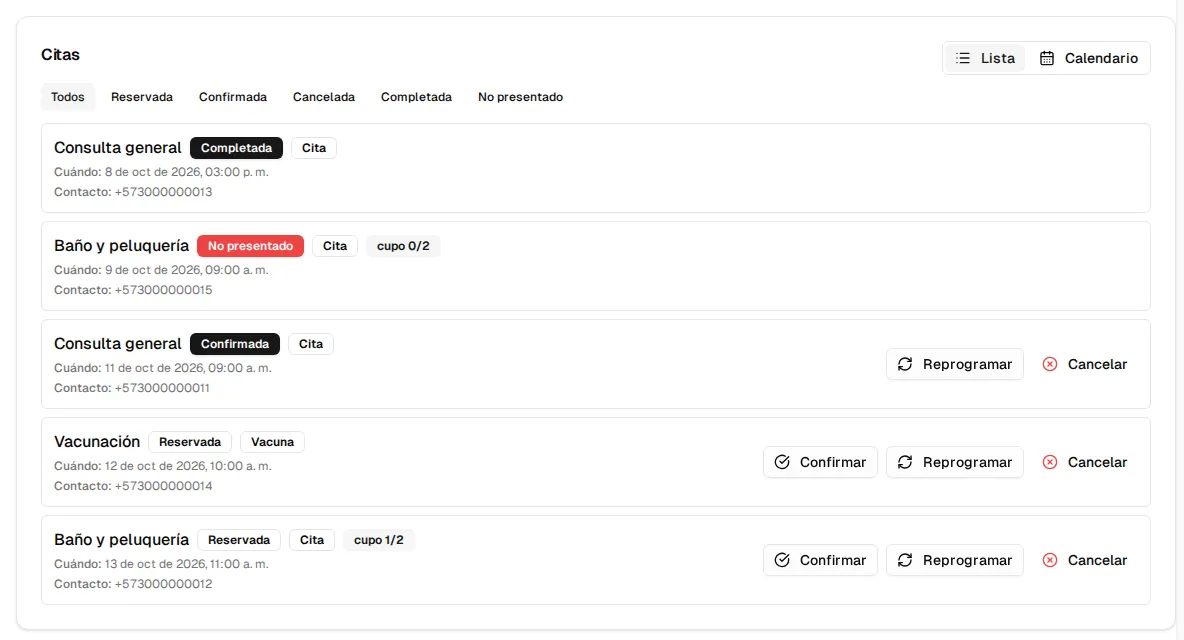
- Status filters at the top: All, Booked, Confirmed, Cancelled, Completed and No-show.
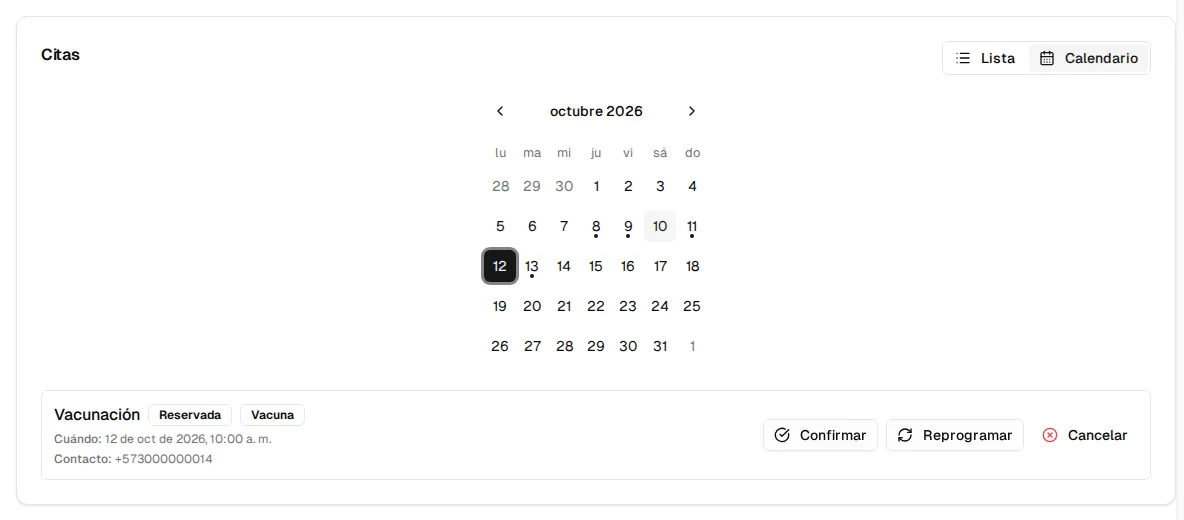
- Calendar: switches to the month view; days with appointments have a dot. Picking a day shows its appointments.
Confirming, rescheduling or cancelling
Section titled “Confirming, rescheduling or cancelling”| Action | When it appears | What it does |
|---|---|---|
| Confirm | Booked appointments | Moves the appointment to Confirmed. |
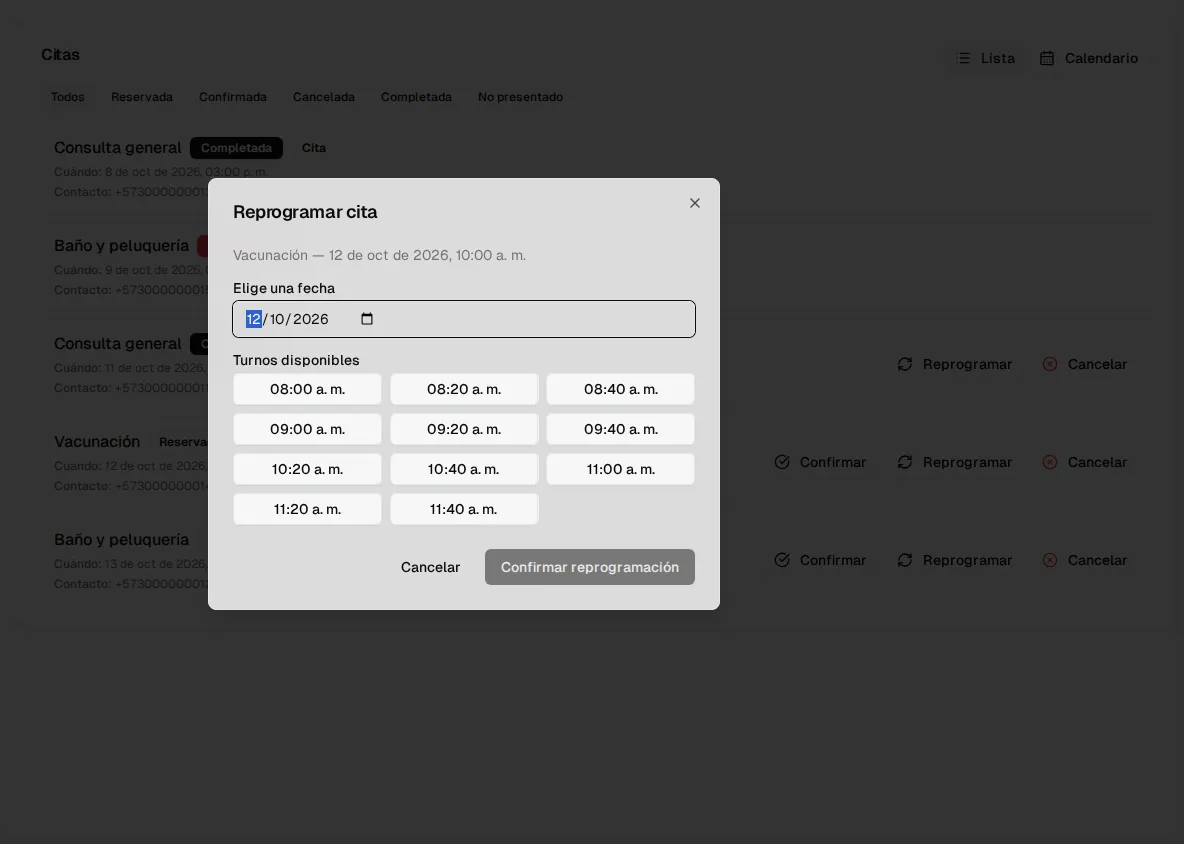
| Reschedule | Booked or Confirmed appointments | Opens a picker: you choose a date and one of that day’s available slots. If another customer takes the slot first, the screen warns you. |
| Cancel | Booked or Confirmed appointments | Asks for confirmation and frees the seat immediately: another customer can take it. |
Appointment statuses
Section titled “Appointment statuses”Booked → Confirmed → Completed. An appointment can also end as Cancelled. The
final statuses are assigned automatically once the slot’s time has passed:
- A Confirmed appointment whose time has passed becomes Completed.
- An appointment that was still Booked (nobody confirmed it) becomes No-show.
That is why it pays to confirm appointments as you verify them: that way the history tells apart those who came from those who did not.
Automatic reminders
Section titled “Automatic reminders”Once, within the 24 hours before the slot, the system sends the customer a WhatsApp reminder (for an appointment or a vaccine) with the service and the date and time. It goes out as a Meta-approved template: the name of your template is configured in Behavior (Appointment reminder template); if you do not define one, the general notification template is used. Cancelled appointments get no reminder.