Setup
Online client sign-up
The public link where your clients enroll and pay on their own — plans, form, payment and automatic account creation.
The online sign-up is a public page of your organization
(/join/your-organization) that you share over WhatsApp, social media or your website.
There your clients fill in their details, choose a plan, add their beneficiaries and pay —
Inspow automatically creates the user, their beneficiaries, the subscription and the paid
invoice, without your team typing anything.
It is configured in the Public registration menu (Onboarding Settings screen).
You need the manage:onboarding permission.
How it works for your client
Section titled “How it works for your client”- Your details: first name, last name, email, mobile number, document type and number, and address.
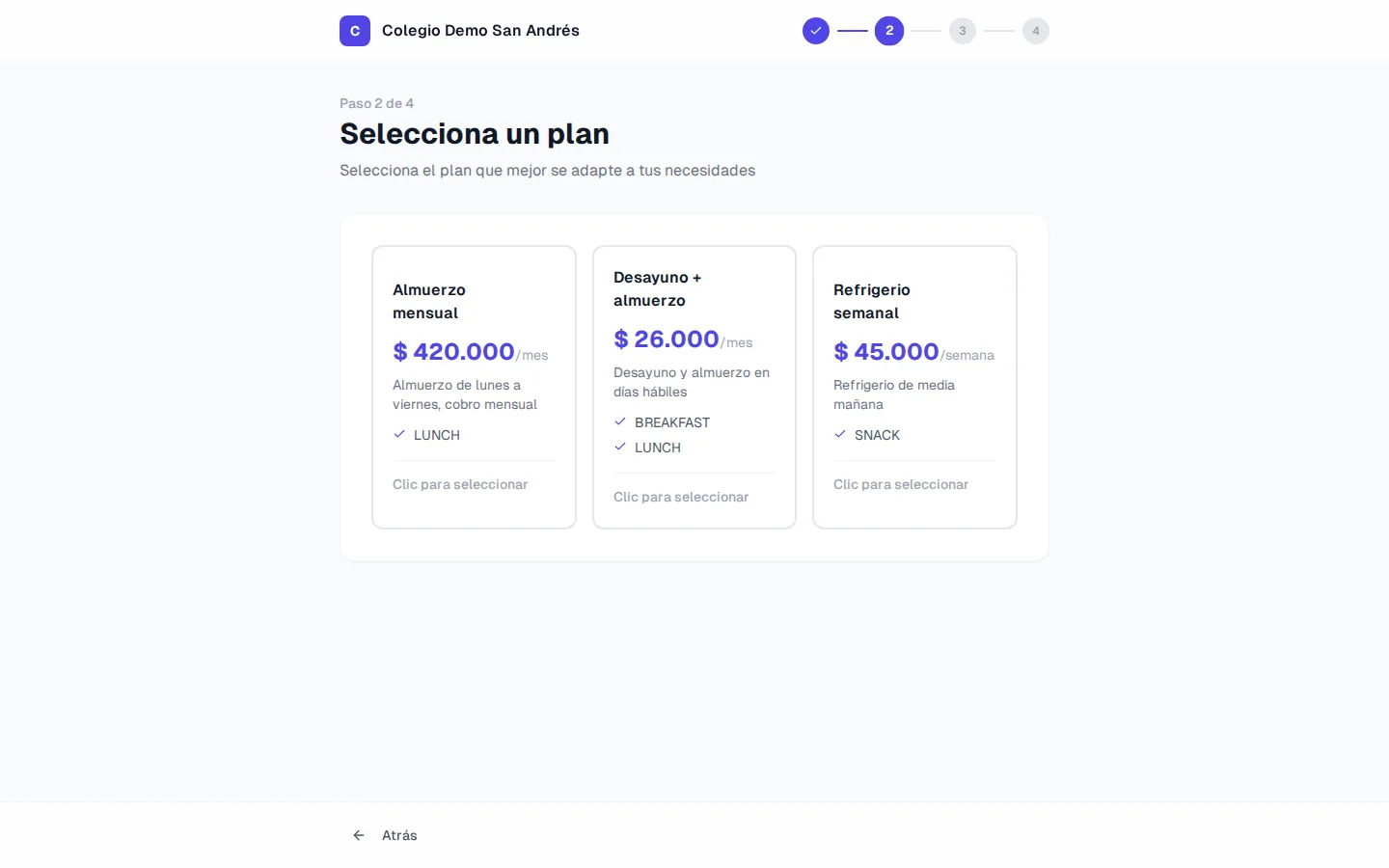
- Plan: they see the plans you decided to offer online, with their price, and choose one.
- Beneficiaries: they add the people who will use the service (first name, last name, date of birth and allergies). If the service is for themselves, they check Include me as a beneficiary. The name of this step changes depending on your sector.
- Payment: they review the summary (plan, beneficiaries and total) and pay online through the payment gateway.
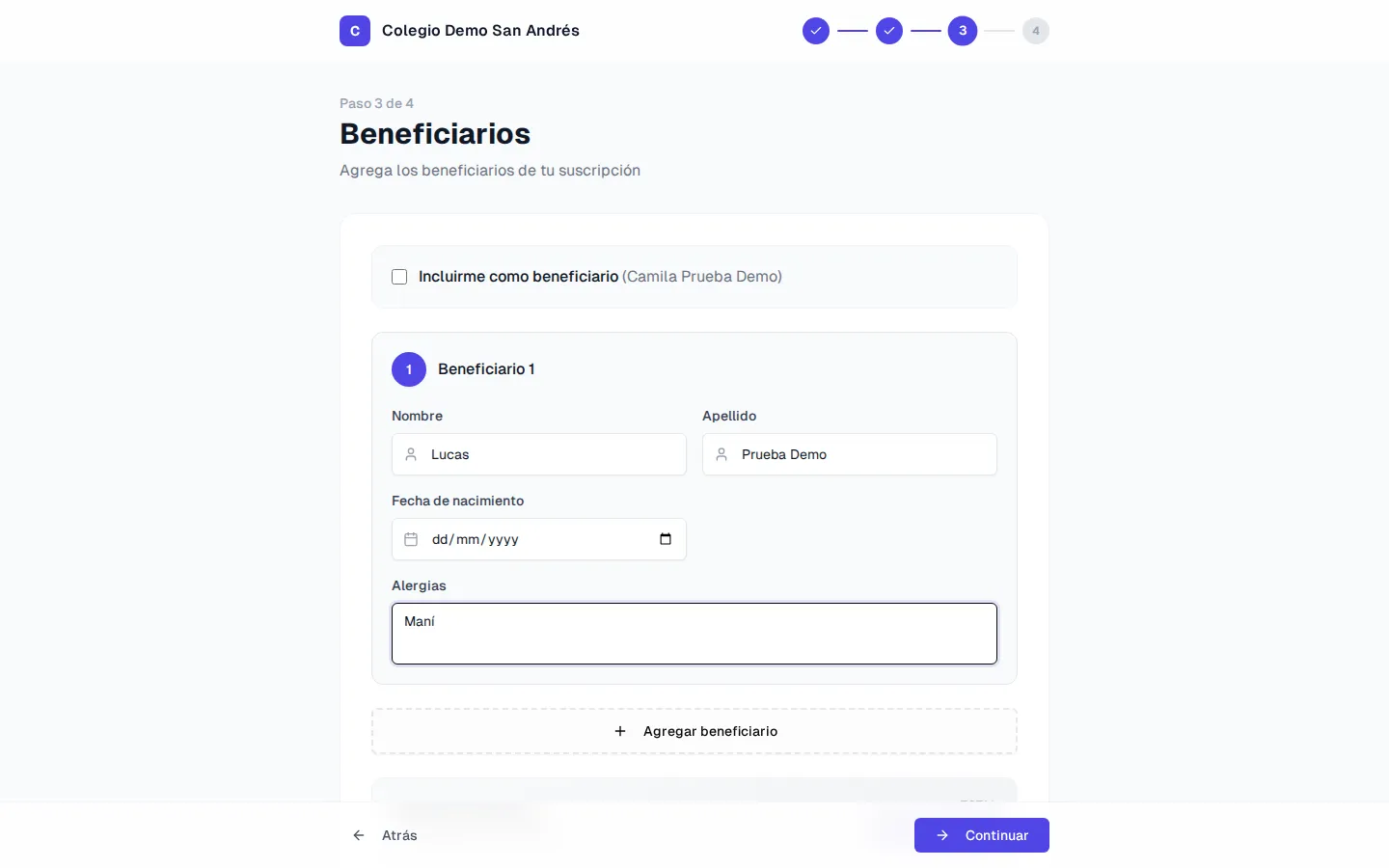
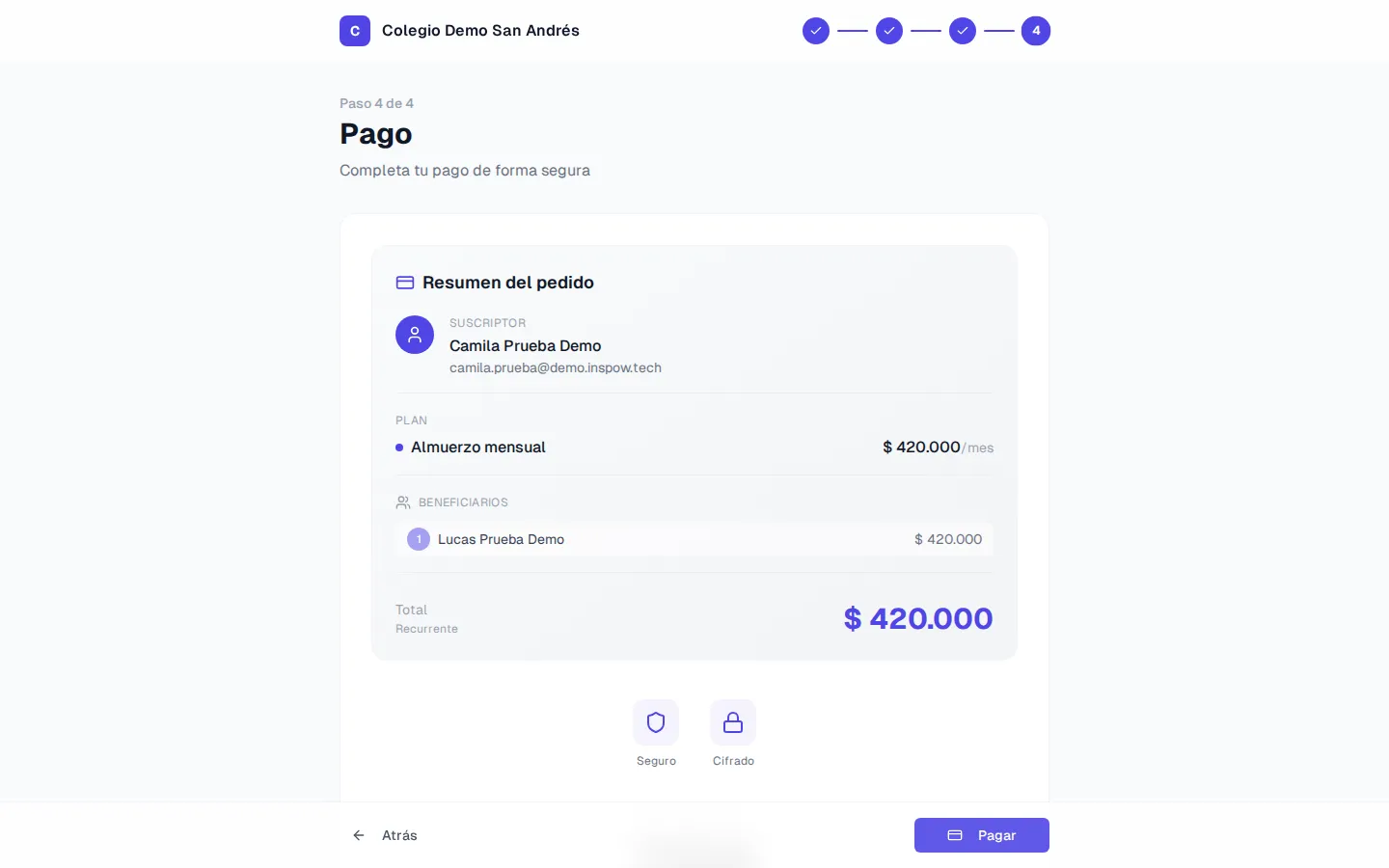
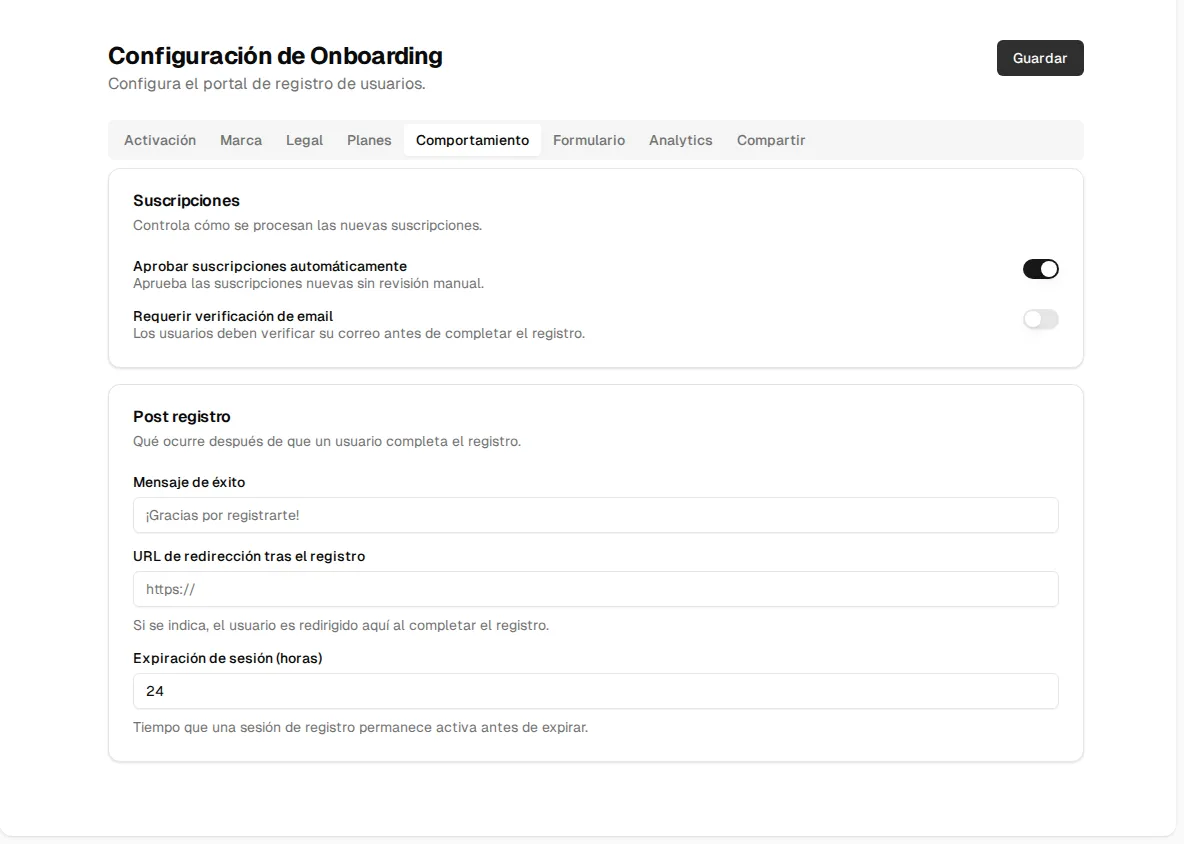
Once the payment is approved, the account is created, the invoice is recorded as paid and the subscription is active — or pending payment, if you turned off Auto-approve subscriptions (see Behavior). Inspow emails the client a temporary password so they can sign in to their account.
Settings
Section titled “Settings”The screen has eight tabs and a single Save button for all of them.
| Tab | What it controls |
|---|---|
| Activation | Onboarding enabled: turns the public page on or off. When off, the link doesn’t allow enrolling. |
| Branding | The logo and the primary color of the public page. If you leave them empty, your organization’s are used. |
| Legal | The URLs of your terms and conditions and your privacy policy; they appear as links at the bottom of the sign-up. |
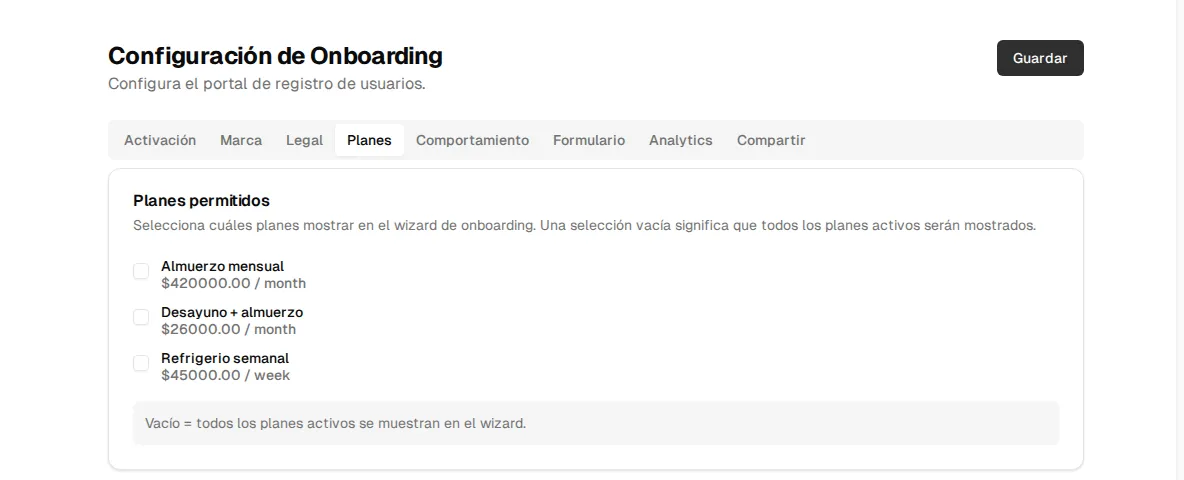
| Plans | Allowed plans: which of your plans are offered online. If you don’t check any, all active plans are shown. |
| Behavior | Auto-approve subscriptions and Session expiration (hours): how long the client can take to finish (24 h by default). |
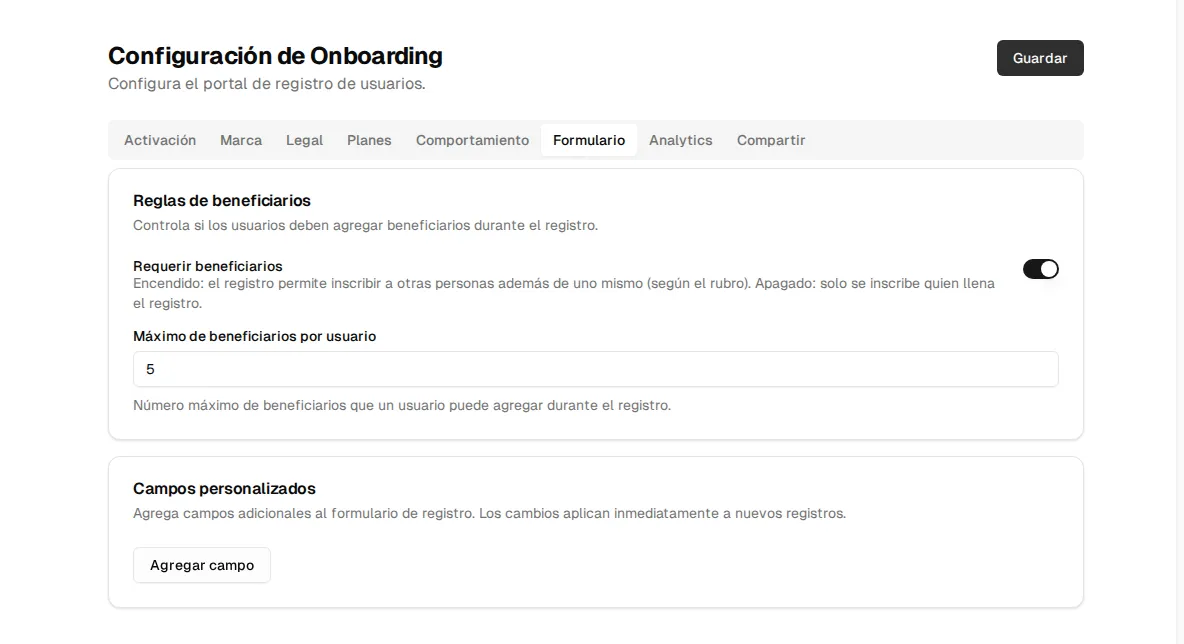
| Form | Require beneficiaries, the Max beneficiaries per user (5 by default) and the custom fields (Add field button: name, label, type, whether it is required and options). |
| Analytics | Your Google Analytics measurement ID and the Facebook Pixel ID, to measure the page with your own tools. |
| Share | Your public link ready to Copy and the Open preview button. |