

WhatsApp Agent
Configure the agent
Behavior, orders, knowledge, tools and escalation — the tabs that define how the agent works.
Everything about the agent’s behavior is defined in WhatsApp Agent → Settings. Besides Connection, there are five tabs: Behavior, Orders & delivery, Knowledge, Tools and Escalation (plus Calls, if your organization has calls enabled). Changes apply immediately to new conversations.
You need manage:wa-settings for Behavior, Tools and Escalation, and
manage:wa-knowledge for Knowledge (the wa-admin role includes all of them).
Behavior
Section titled “Behavior”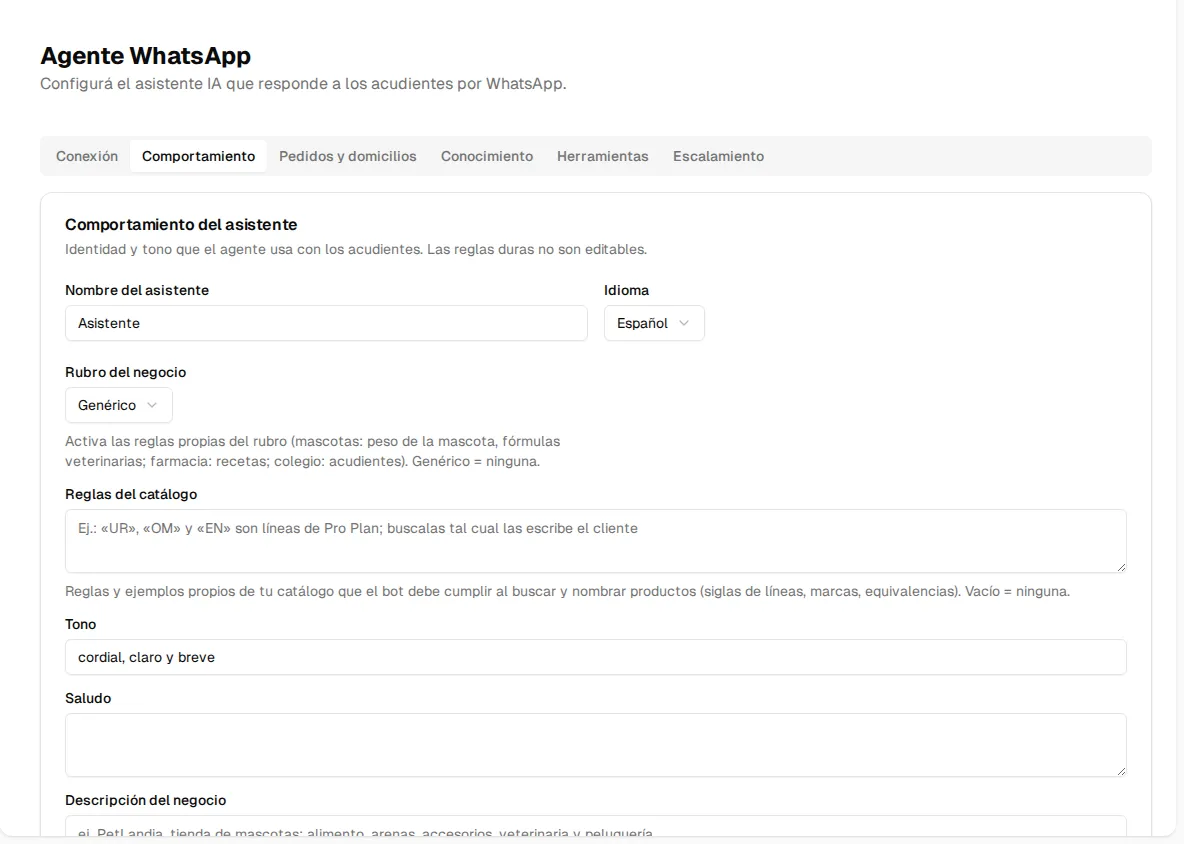
Defines the assistant’s identity and when it works:
- Assistant name: how it introduces itself (e.g. “Patitas Vet Assistant”).
- Language: Spanish or English.
- Business type: turns on the rules specific to your kind of business — Pet store / veterinary clinic (pet weight, veterinary prescriptions), Pharmacy (prescriptions), School (parents/guardians) or Generic (no special rules).
- Catalog rules: your catalog’s own instructions that the agent must follow when searching for and naming products — product-line abbreviations, brands, equivalences. E.g.: «“UR”, “OM” and “EN” are Pro Plan lines; search for them exactly as the customer writes them».
- Tone: a short style instruction (e.g. “warm, clear and brief”).
- Greeting: the message that opens a new conversation.
- Business description: one line telling the agent what you sell and whom you serve (e.g. “pet store: food, litter, accessories, vet care and grooming”). Empty, the agent uses the school framing.
- Team name: how the agent refers to your team in messages. Empty = “our team”.
- Catalog PDF: a PDF the agent can send when someone asks for the full list. Empty = disabled.
- Business hours (Bogotá time): from, to and days (empty = every day).
- Auto-reply outside business hours (on by default): outside business hours the agent replies with the out-of-hours message. Turned off, the agent works 24/7 and the hours only silence overnight follow-ups and limit appointment slots.
- Forget the conversation after hours of inactivity (48 h by default): if the customer comes back after that silence, the agent starts from scratch instead of dragging the old thread along. 0 = never forget.
- Appointment reminder template: the name of your approved Meta template for appointment reminders. Variables:
{{1}}= type (appointment/vaccine),{{2}}= service,{{3}}= date. Empty, the generic template is used. - Privacy notice (Law 1581): the data protection text sent on first contact. It ships with a base text you must adjust — validate it with your legal advisor.
Operation
Section titled “Operation”| Switch | What it does |
|---|---|
| Shadow mode | The agent proposes and a person approves before sending. On by default; recommended until the edit rate drops. |
| Public mode (sales) | Anyone who accepts the privacy notice talks to the agent without verifying — catalog, prices, orders, menu, files and escalation only. Tools with personal data (account status, attendance, payment receipts) always require verification. Designed to capture new customers. |
| Skip privacy notice | The agent replies directly without showing the first-contact notice. No consent is recorded: the business assumes the legal responsibility (Law 1581). Validate it with your lawyer. Off by default. |
| Always require OTP | Verifies every user with an email code, even when their mobile matches a single account. For organizations that prefer maximum caution. |
| Force clinical hand-off | Doses, interactions, symptoms and diagnoses always go to a person, without passing through the AI. If you leave it untouched, it is on for the pet store/veterinary, pharmacy and school business types, and off for the generic type. Turning it off is at your own risk. |
| Kill switch | Stops the agent completely: incoming messages are stored and escalated to your team, nothing is answered automatically. |
Orders and delivery
Section titled “Orders and delivery”If your business sells over WhatsApp, the Orders & delivery tab defines how the agent quotes delivery and registers orders (zones, rates and dispatch). The step-by-step is in Orders and delivery.
Knowledge
Section titled “Knowledge”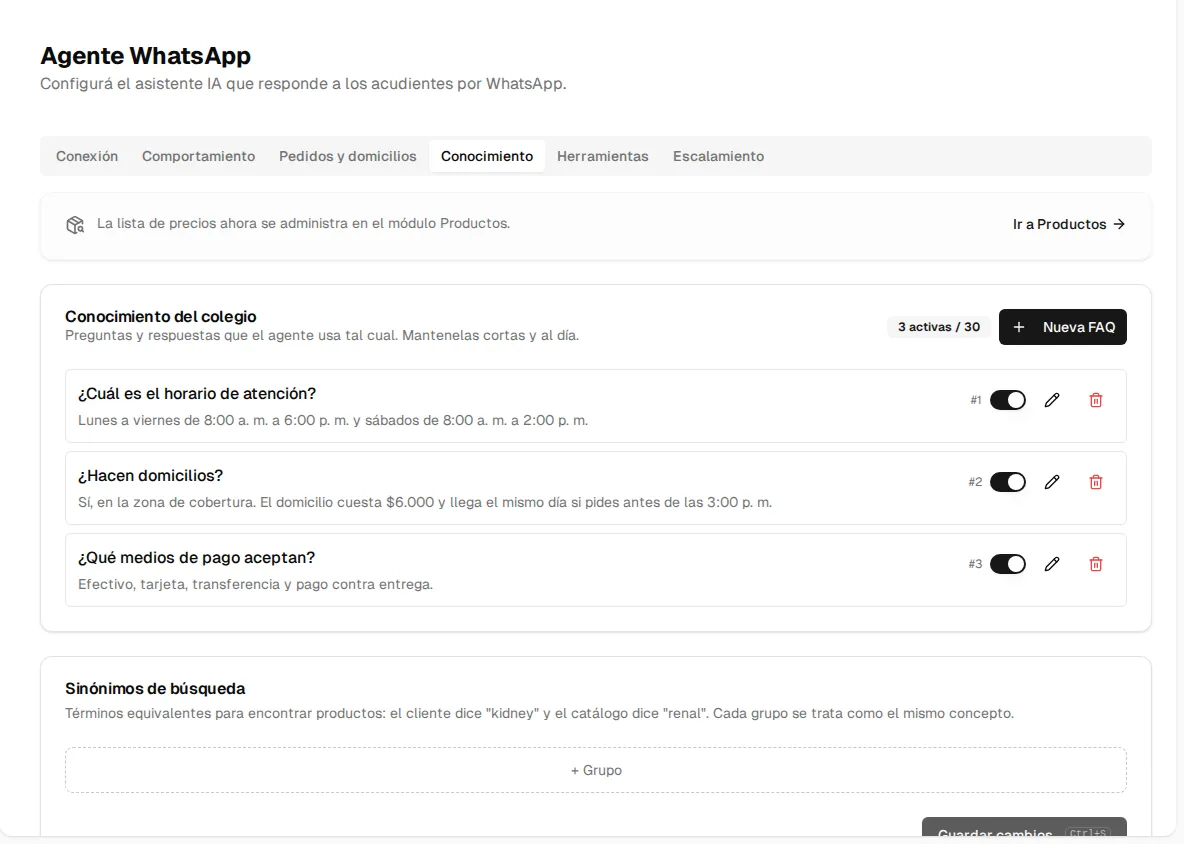
The FAQs are your organization’s own information the agent uses to answer: hours, delivery, payment methods, payment dates, uniforms, requirements.
- Each FAQ has a question, an answer, an order and an active switch.
- The agent answers with your text as-is when the question matches — write short, concrete, up-to-date answers.
- Only the first 30 active FAQs (by order) reach the agent. The screen counter (e.g. “3 active / 30”) warns you if you go over.
Search synonyms: groups of equivalent terms to find products — the customer says “kidney” and your catalog says “renal”. Type each term and press Enter; each group is treated as the same concept.
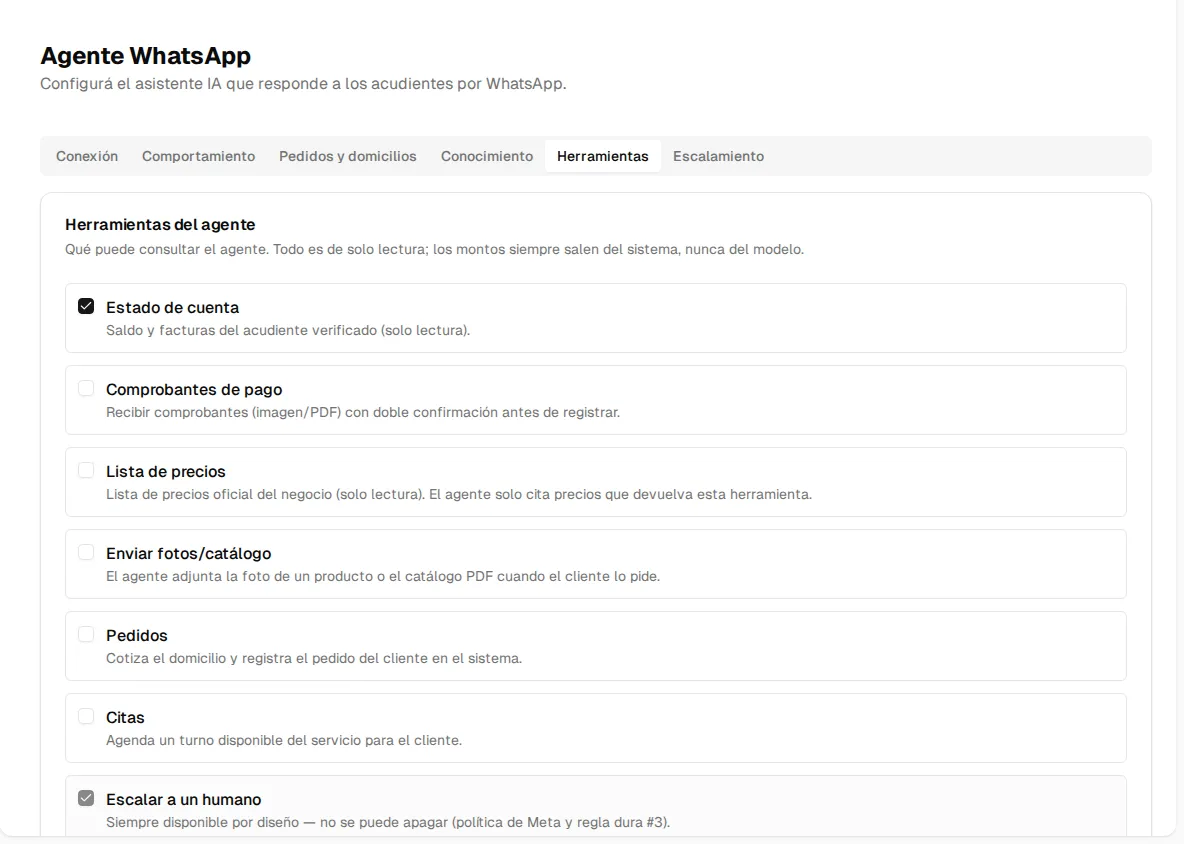
Tools are what the agent can look up or do in Inspow. Amounts always come from the system, never from the model:
| Tool | What it does | Example |
|---|---|---|
| Account status | The verified user’s balance, pending invoices and their due dates. | ”How much do I owe?” |
| Meal menu | The published menu for the day or week. | ”What’s for lunch tomorrow?” |
| Attendance | Their beneficiaries’ attendance records, making clear it is the cafeteria record (not academic attendance). | ”Did my kid arrive?” |
| Payment proofs | Receives the photo or PDF of a payment, asks to confirm which invoice it belongs to, and registers it pending approval by your team. | ”Here’s the deposit receipt.” |
| Price list | Quotes with the current prices of your Products catalog. The agent only quotes prices returned by this tool. | ”How much is the 8 kg bag of dog food?” |
| Send photos/catalog | Attaches a product photo or the PDF catalog when the customer asks for it. | ”Can you send me the catalog?” |
| Orders | Quotes delivery and registers the customer’s order in the system (see orders). | ”Please deliver it to my house.” |
| Appointments | Offers available times, books, reschedules and cancels slots (see appointments). | ”I want an appointment on Thursday.” |
| Escalate to a human | Hands the conversation to your team. Always on — cannot be disabled. | ”I want to talk to a person.” |
The tools you see depend on your sector:
| Sector | Available tools |
|---|---|
| School | All |
| Corporate cafeteria / restaurant | All except Appointments |
| Gym, Academy, Club, Coworking, Clinic and others | Account status, Payment proofs, Price list, Photos/catalog, Orders and Appointments (no Menu or Attendance) |
In public mode, only the tools without personal data work: Price list, Menu, Photos/catalog and Orders.
Below the list is the Recognize Alegra customers switch (for those using the Alegra integration): with it on, the agent recognizes the Alegra customer by mobile number or ID number and confirms their address in the chat. This is different from the integration’s contact sync option, which only copies the contacts into Inspow so you can look them up.
Escalation
Section titled “Escalation”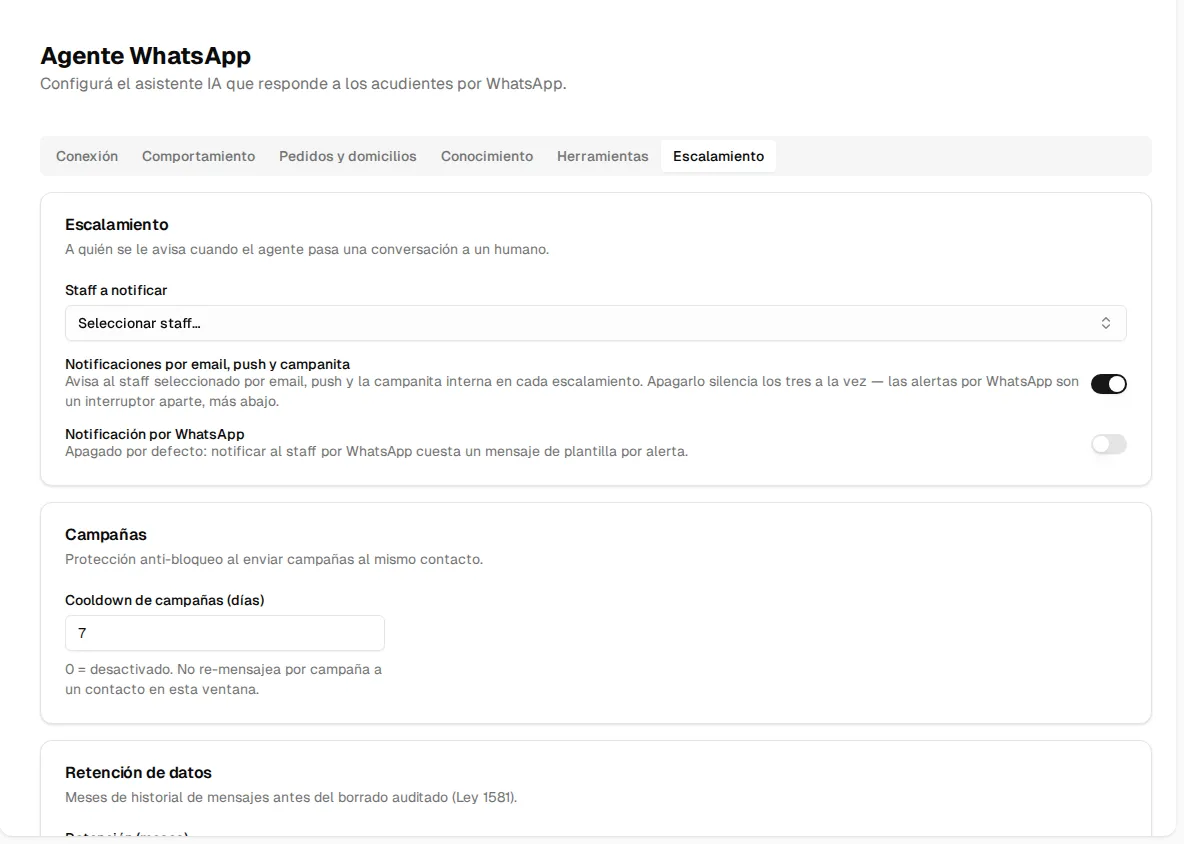
Defines what happens when the agent hands a conversation to your team:
- Staff to notify: the people who get the alert for every escalation.
- Email, push & bell notifications (on by default): alerts the selected staff through all three channels at once. Turning it off silences all three.
- WhatsApp notification: off by default — each alert through this channel uses a template message with a cost.
- Campaign cooldown (days): how many days must pass before the same contact can be included in another campaign. 7 by default; 0 disables it. It protects your number’s reputation.
- Retention (months): between 1 and 60 months (12 by default) of message history before the audited automatic deletion (privacy details).
AI budget and conversation quota
Section titled “AI budget and conversation quota”Your organization’s monthly AI spending cap is set by Inspow according to your plan (it cannot be edited from this screen). At 80% your team gets an alert in the console; at 100%, with the cutoff enabled, the agent stops reasoning and hands everything to your team. Features that do not use AI (verification, BAJA, confirmations) keep working.
If your organization has a contracted module plan, the monthly quota of AI conversations is derived from the plan. When it runs out, the agent hands over to your team.