

Billing
Payment proofs
Record bank transfer payments with a payment proof and validate them in Inspow.
When a client pays outside the payment gateway (for example, a bank transfer), the payment is recorded with a payment proof on the invoice. Your team reviews it and approves or rejects it.
Attach a payment proof
Section titled “Attach a payment proof”The client can upload it from their account, or your team can do it on their behalf: on the (pending) invoice, menu ⋯ → Upload payment, or Upload Proof in the detail view.
- Payment Proof File: an image (JPEG, PNG or WebP) or a PDF, up to 10 MB.
- Notes (Optional): details about the payment.
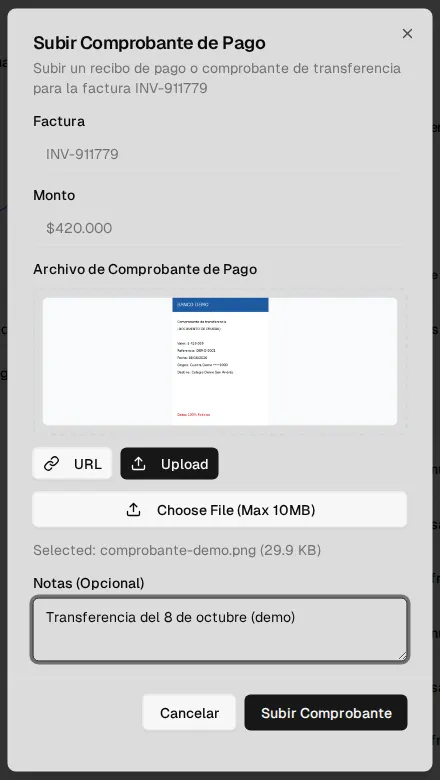
When it’s uploaded, the invoice records the manual transfer method and moves to Under Review (“Review” in the table). The client receives a notice that their payment is being verified.
Validate the payment
Section titled “Validate the payment”On the invoice, menu ⋯ → View voucher opens Payment Voucher Details: the file, its size and type, the upload date, the notes and the preview of the proof.
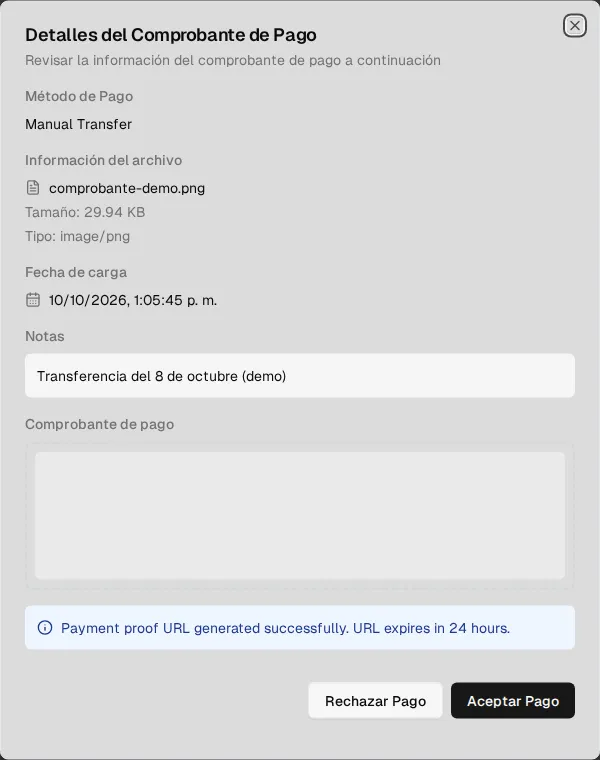
- Accept Payment: the invoice moves to Paid, the payment date is recorded and, if it is the first payment, the subscription is activated.
- Reject Payment: write the Rejection Reason (the client receives it) and confirm. The proof is deleted.
You need the permission to update invoices. The client receives the result through the platform, email and WhatsApp, and each action is recorded in the invoice’s Activity Timeline.
Invoice statuses
Section titled “Invoice statuses”| Status | Meaning |
|---|---|
| Pending | Issued, waiting for payment. |
| Under Review | Proof attached, pending validation. |
| Paid | Payment confirmed or approved. |
| Failed | The gateway rejected the payment. |
You can only approve or reject an invoice with a proof that hasn’t been paid yet.