

WhatsApp Agent
Supervision console
The live inbox where your team reviews the agent — approving proposals, taking over conversations, replying, tagging and reactivating chats.
The console (WhatsApp Agent → Console) is where your team lives alongside the agent: watching messages arrive in real time, reviewing what the agent did and why, approving its shadow-mode proposals and taking control when needed.
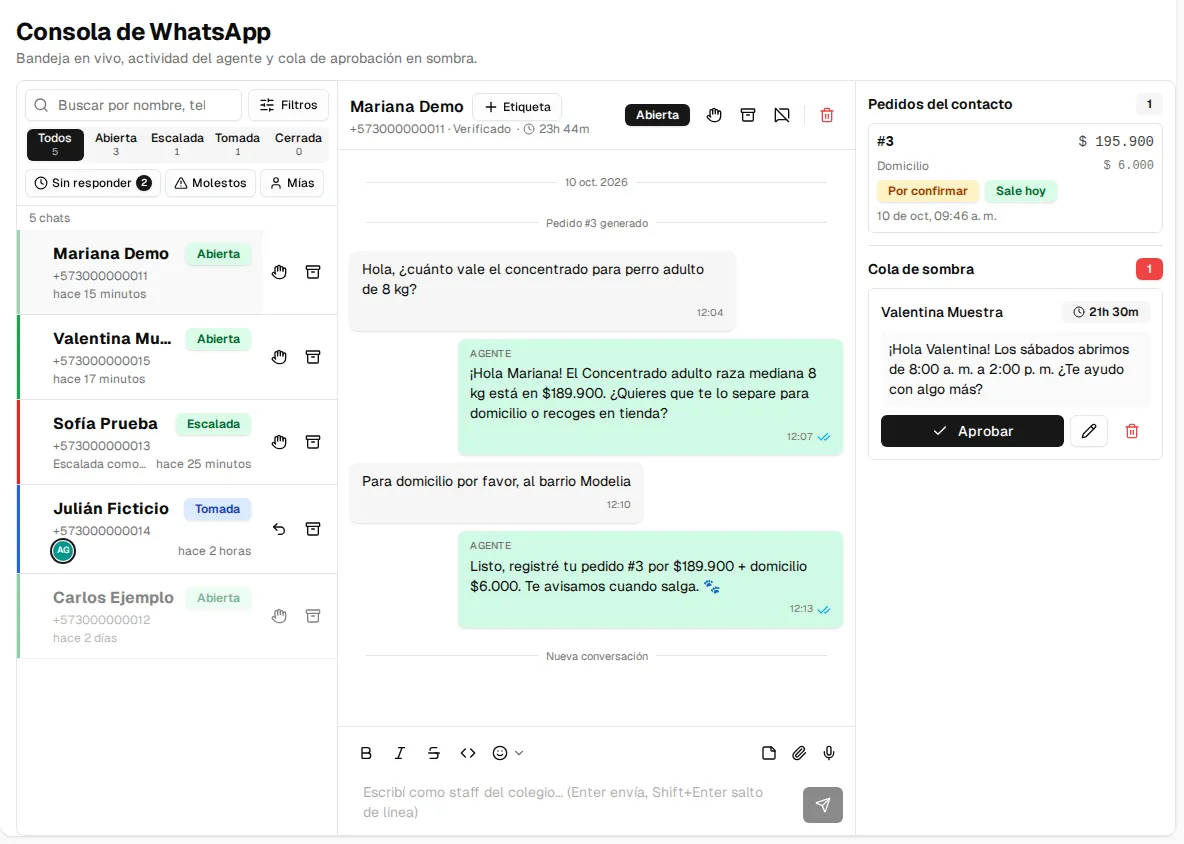
Anyone with the wa-supervisor (or wa-admin) role can live here; the exact actions
depend on permissions:
| Permission | Enables |
|---|---|
read:wa-conversations | Seeing the inbox, the threads and the agent activity. |
operate:wa-conversations | Taking over, releasing, closing and archiving conversations, and sending manual messages. |
review:wa-proposals | Seeing and resolving the shadow-mode proposal queue. |
The screen has three columns: the contact inbox, the thread of the selected contact, and a panel with the contact’s orders and the shadow queue.
The inbox
Section titled “The inbox”The left column lists your organization’s contacts, most recent first.
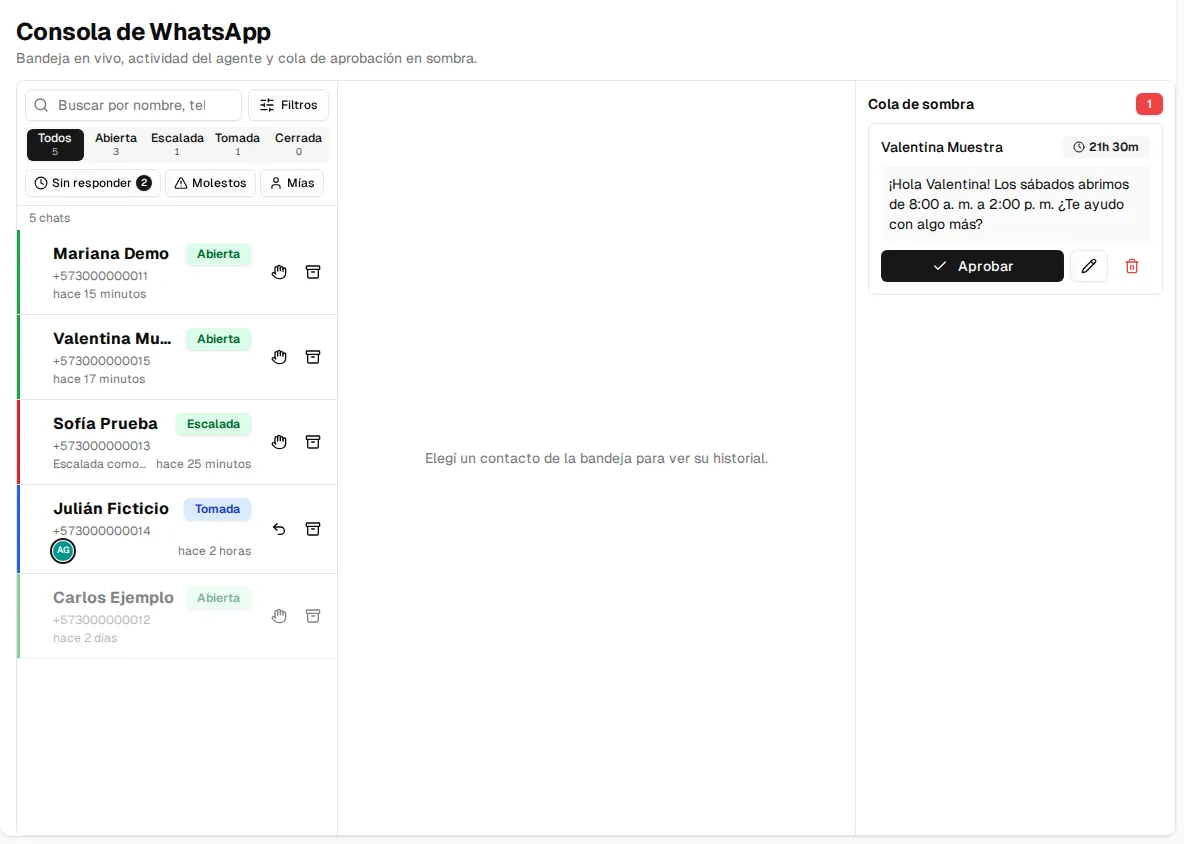
| Status | What it means |
|---|---|
| Open | The agent handles it normally. |
| Escalated | The agent handed it to your team (with the case category). The agent stays silent until someone resolves it. |
| Taken over | A person took control; the agent is silent. The avatar of whoever has it is shown. |
| Closed | Conversation finished. |
| Archived | Contacts you removed from the inbox; they are in the status filter and you can unarchive them. |
Below the statuses there are three shortcuts:
- Awaiting reply: contacts whose last message has not been answered yet (with the counter).
- Upset: contacts where the agent detected annoyance. In the thread you can Mark handled.
- Mine: the conversations you took over.
The search box finds contacts by name, phone or user, and also messages: the results show the text with the match highlighted. The Filters button adds filters by advisor, period (today, 7 or 30 days), tag and escalation category.
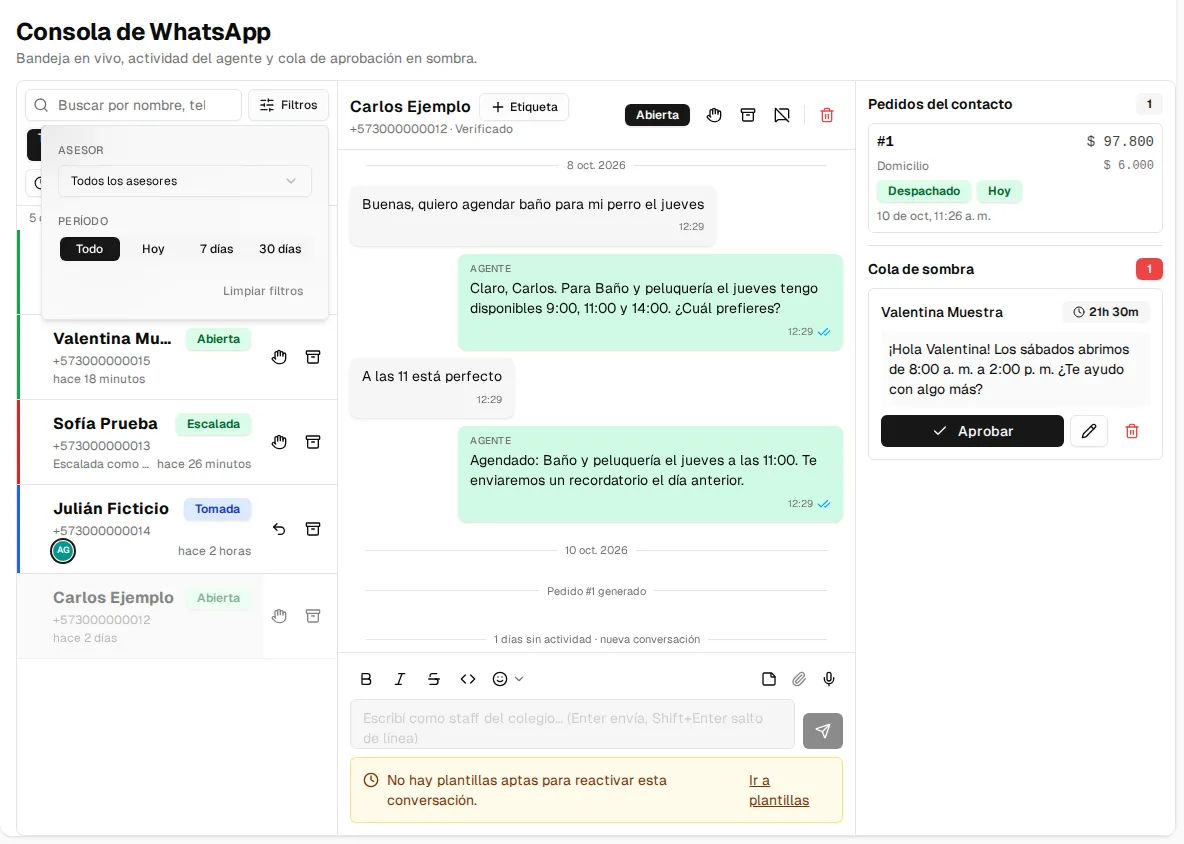
On each row, the quick buttons let you Take over (or Release) and Archive.
The thread
Section titled “The thread”Opening a contact shows its full history, with separators by date and by conversation (“new conversation”, “Order #3 created”). Every outgoing message indicates its origin — from the agent, the staff or an approved proposal — and its delivery status (sent, delivered, read, failed). The header shows whether the contact is Verified, how much of the 24-hour window is left and who the conversation is assigned to.
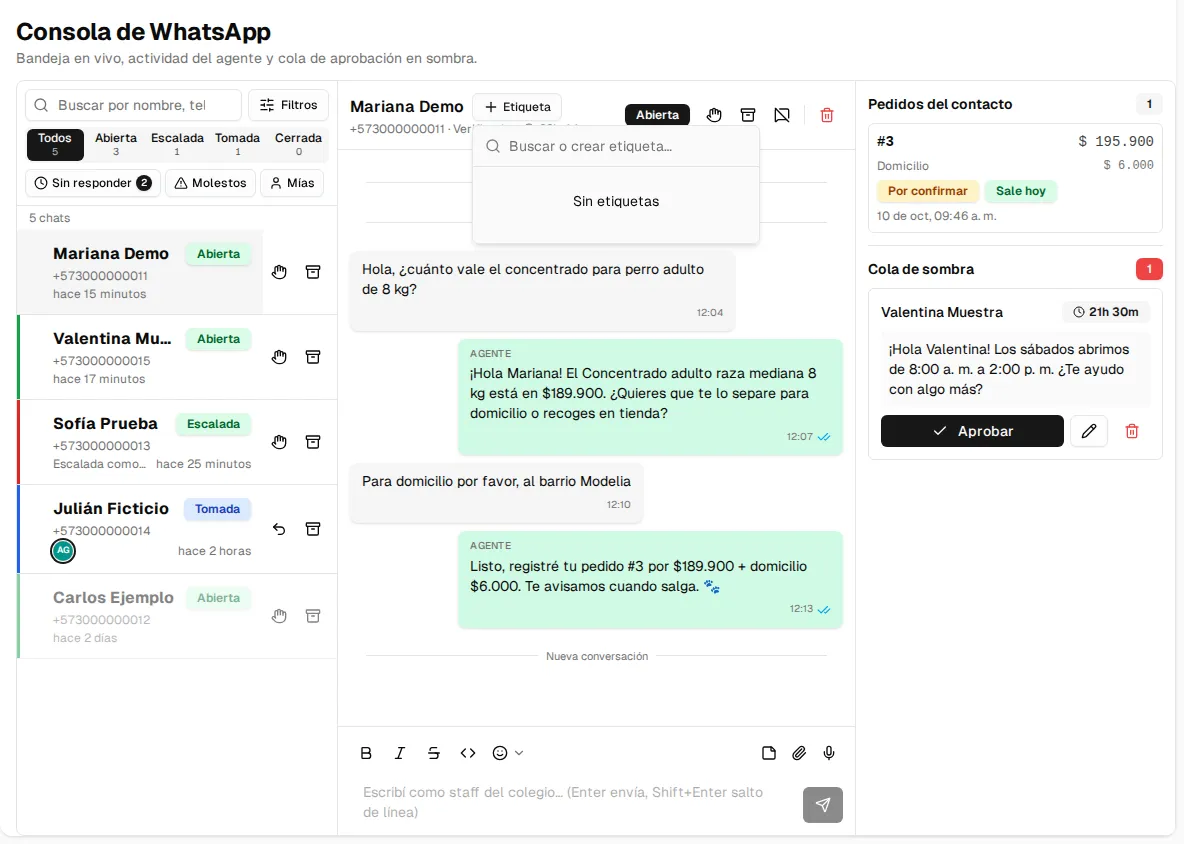
Tags: with + Tag you classify the contact (for example “wholesale” or “frequent customer”). You can search for or create a tag, rename it, change its color or remove it from all contacts. Then you filter the inbox by tag.
Agent activity
Section titled “Agent activity”The Agent activity button opens the detail of every reply: which checks ran, which tools it queried and with what result, how long it took and what it decided in the end (reply, propose, escalate or block itself). It is the black box, opened: your team does not have to blindly trust the agent.
Contact orders
Section titled “Contact orders”The right panel shows the contact’s latest orders with their status and dispatch day; Open order takes you to Orders.
Shadow queue
Section titled “Shadow queue”With shadow mode on, the agent does not send: it proposes. Each proposal shows up in the queue with a countdown to the end of the 24-hour window and three actions:
- Approve: the message goes out as-is.
- Edit before sending: you fix the text and your version goes out. The edit rate is the thermometer for deciding when to grant more autonomy.
- Discard: nothing is sent; you leave a short reason (it helps tune the agent).
Taking over, releasing, closing and archiving
Section titled “Taking over, releasing, closing and archiving”- Take over: the agent goes quiet and your team replies live. The user does not notice the handover.
- Release: the agent resumes, with the full history in view — including what the human wrote, so it does not contradict them.
- Close: ends the conversation (if the user writes again, it reopens on its own). If you write to a contact with no active conversation, it reopens as Taken over.
- Archive: removes the contact from the inbox without deleting anything.
Replying from the console
Section titled “Replying from the console”The thread’s text box lets you write as staff at any time (Enter sends, Shift+Enter adds a line break), with formatting (bold, italic, strikethrough, code) and emojis. You can also:
- Reply to a specific message (it appears quoted above yours).
- Use Quick replies: saved texts you insert with one click (how to create them).
- Attach an image, a PDF or a video, with a caption that travels with the attachment.
- Record and send a voice note.
- Write an Internal note: only your team sees it, never the customer. You can mention a colleague so they get notified.
Expired window: reactivate with a template
Section titled “Expired window: reactivate with a template”If more than 24 hours have passed since the customer’s last message, WhatsApp does not allow free text. The console tells you so and offers Reactivate with template: you pick one of your approved templates, fill in its variables, check the preview and send it. It costs one template message; you can write freely once the customer replies.
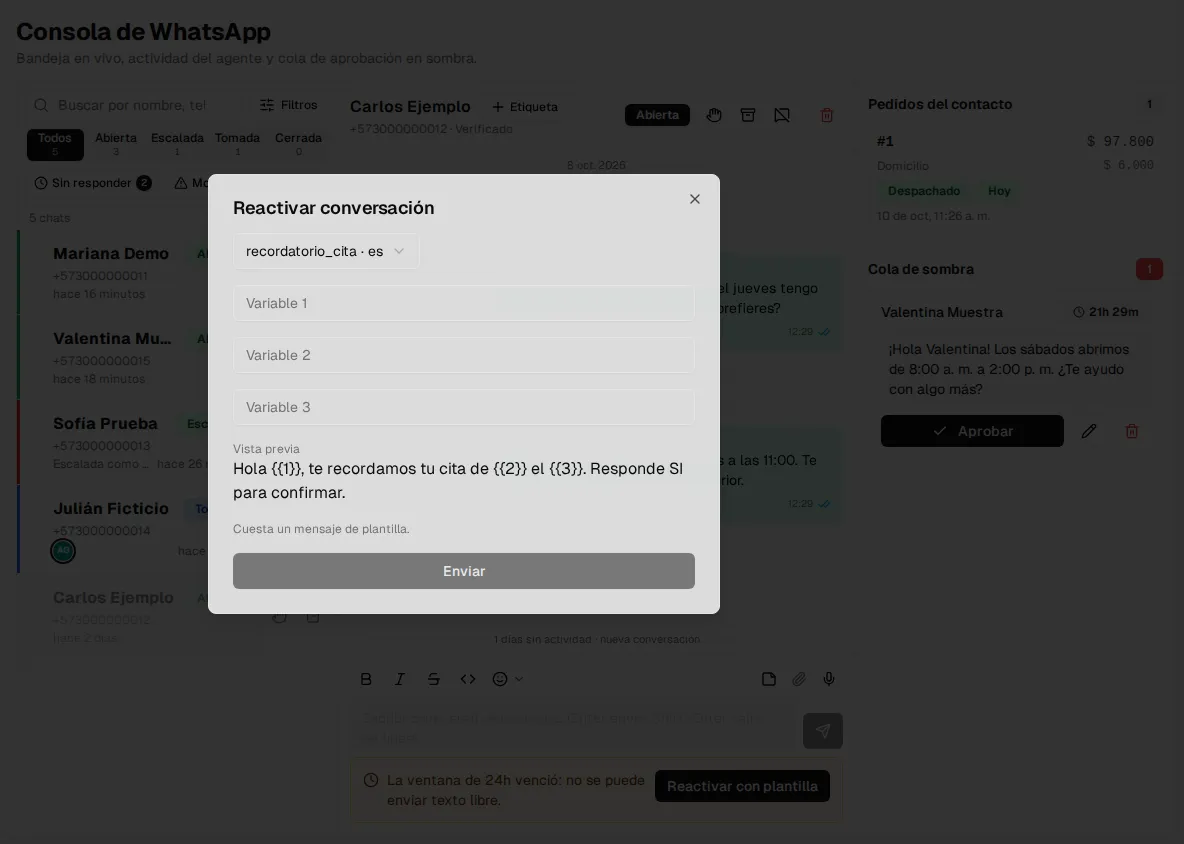
You cannot reactivate if the contact opted out, if you have no eligible templates, or if your business’s daily template quota has run out (it resumes the next day).
Deleting a contact’s data
Section titled “Deleting a contact’s data”From the thread, Delete contact data permanently erases their messages, appointments and profile (it handles Law 1581 deletion requests). Consent evidence is kept as required by law. It is irreversible: you must type ELIMINAR to confirm.
Live alerts
Section titled “Live alerts”The console notifies in real time when:
- a new shadow proposal arrives,
- the AI budget reaches 80% of the monthly cap,
- the plan’s conversation quota is running out,
- there is a problem with the WhatsApp channel (quality, token, restrictions) — then check the Connection screen.