

Meals
Plan the weekly menu
Create each day's meal menu, review the week and notify families in Inspow.
This guide is for administrators in sectors with a food service. It explains how to create each day’s Meal Menu, review the week and notify your clients. It is in the Meal Menus menu.
The list has three views (buttons to the left of Advanced DataTable): table, week and month. The week view shows each day with its meal types; those that already have a menu appear in color with their portions, and the empty ones have a + button to create them.
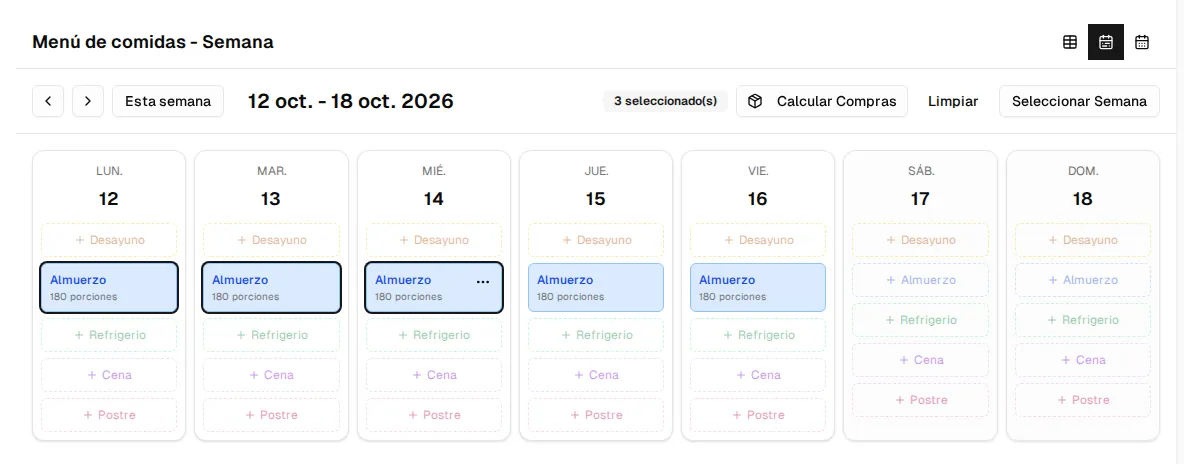
Create a day’s menu
Section titled “Create a day’s menu”Each menu corresponds to a date and a meal type. Create it with Create Meal Menu or with the + in the weekly view, and choose a recipe for each section. The sections depend on the meal type; for lunch they are Soup, Protein, Carbohydrate, Salad, Drink and Dessert. You must choose at least one recipe.
You can also enter the Estimated portions (used by the purchase list) and a Special Note (up to 500 characters, for example to point out gluten-free options).
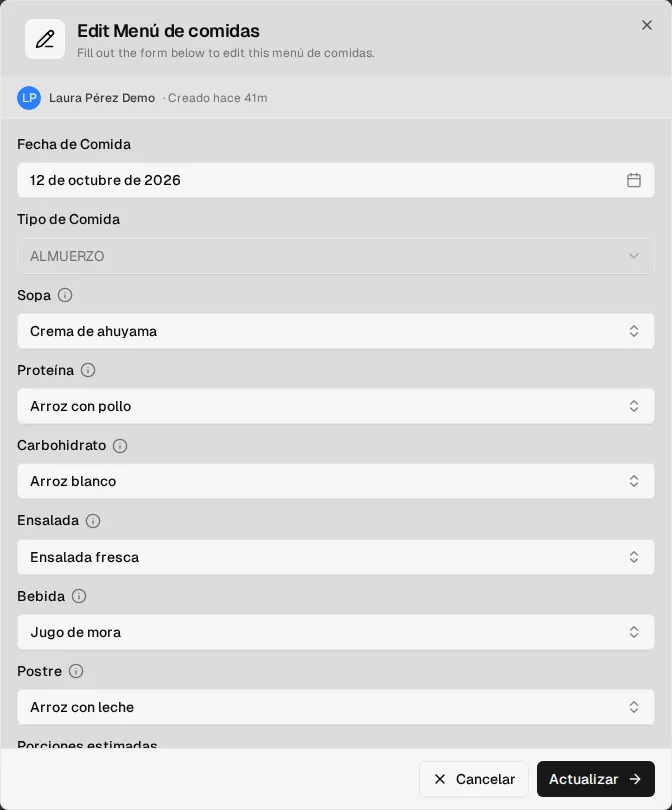
Create in bulk
Section titled “Create in bulk”Create Bulk goes day by day through a date range (weekends included) so you can load several menus in a row; on each day you can Skip or go to the Next one, and end with Finish.
Meal types
Section titled “Meal types”| Meal type | Internal value |
|---|---|
| Breakfast | BREAKFAST |
| Lunch | LUNCH |
| Dinner | DINNER |
| Snack | SNACK |
| Dessert | DESSERT |
Automatic weekly check
Section titled “Automatic weekly check”Inspow automatically checks the menus for the following week (Monday to Friday) on the day and time configured for your organization. If the week is complete, it notifies the families; if days are missing, it notifies the administrator so they can complete them in time. The day and time of this check are configured by the Inspow team.
Notify families
Section titled “Notify families”Notify opens a wizard: you choose the Meal Type and the Date Range, review the Preview (which also shows the Missing Dates) and send the notice. It is received by the account holders or guardians of active subscriptions whose plan includes that meal type.