

WhatsApp Agent
WhatsApp calls
Answer your customers' WhatsApp calls from the console and call them with their permission — requirements, settings, ringing and voicemail.
With calls enabled, your customers can call your organization’s WhatsApp and your advisors answer from the console, on the computer, with a headset. You can also call a customer, as long as they gave you permission. Calls made by the customer are free.
Checking your number’s limit
Section titled “Checking your number’s limit”In Settings → Connection you see the number’s messaging limit and the calls status (Calling on, Calling off or Calling error, with the details of Meta’s error). If the limit is below 2,000, the screen warns you:
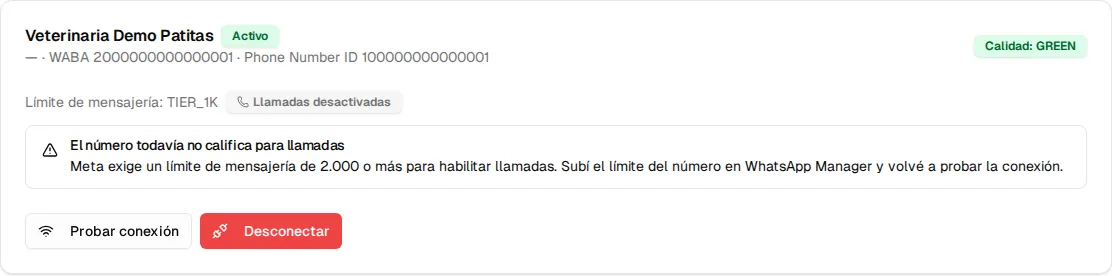
If Meta does not report your number’s limit, the screen asks you to check it in WhatsApp Manager before enabling calls.
Setting up calls
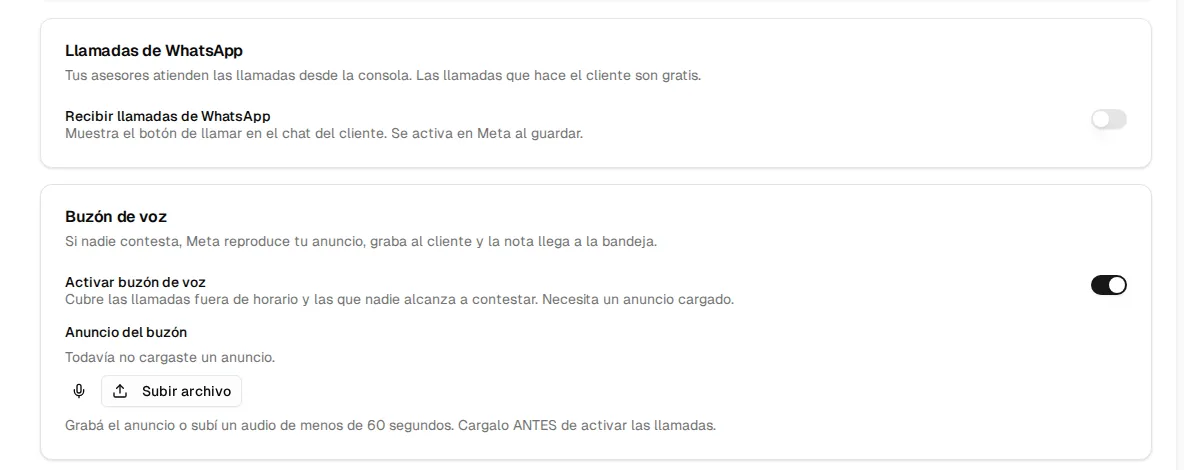
Section titled “Setting up calls”In Settings → Calls (you need manage:wa-settings):
-
Load the voicemail greeting before enabling anything: record it with the microphone or upload an audio file under 60 seconds long. It is what the customer hears when nobody answers.
-
Enable voicemail: if nobody answers (or the call comes in outside business hours), Meta plays your greeting, records the customer’s message and the voice note arrives in the console inbox. It needs the greeting to be loaded.
-
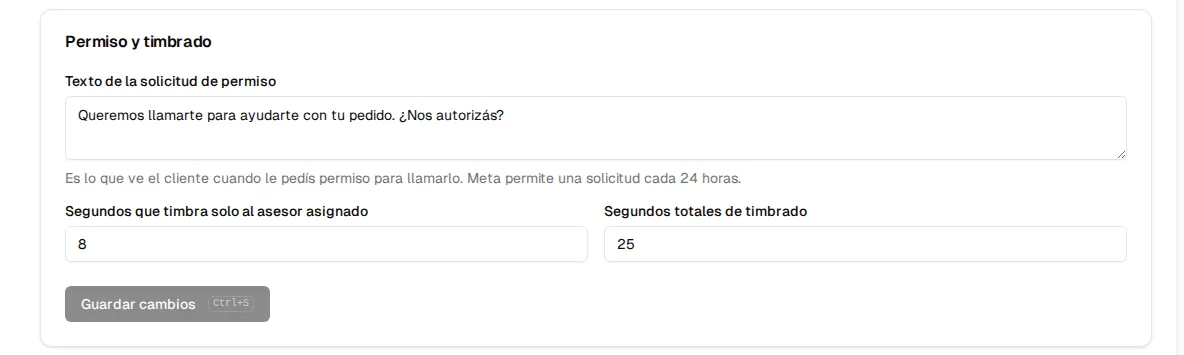
Adjust Permission and ringing (see below).
-
Turn on Receive WhatsApp calls and Save changes. When you save, Inspow enables calls in Meta; if Meta rejects the change, the screen shows you the reason.
| Field | What it defines |
|---|---|
| Call permission request text | The message the customer sees when you ask for permission to call them. |
| Seconds ringing only the assigned agent | Between 3 and 15 (8 by default). |
| Total ringing seconds | Between 10 and 28 (25 by default). It must be greater than the previous one. |
When a customer calls
Section titled “When a customer calls”Who it rings for:
- If the customer’s conversation is taken over by an advisor who has the console open, it first rings only for them for the configured seconds.
- After that (or right away, if there is no assigned advisor) it rings for all advisors with the console open.
- If nobody answers within the total time, or no advisor is online, the call goes to voicemail.
The console shows the incoming call notice, with the customer’s name and number, the seconds left and a ringtone (also a browser notification, if you allowed it):

- Answer: takes the call. The browser asks for the microphone the first time.
- Pass to everyone: if it is ringing only for you, it passes it right away to the rest of the team.
- To voicemail: sends the call to voicemail.
If another advisor answers first, the notice says who took it.
During the call
Section titled “During the call”A bar shows the contact and the timer, with the Mute microphone, Go to thread (opens the customer’s conversation) and Hang up buttons.
Calling a customer
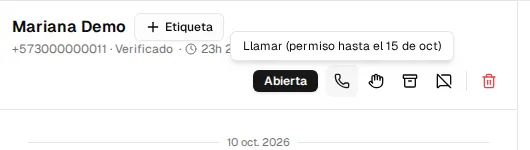
Section titled “Calling a customer”WhatsApp only lets you call a customer who gave you permission. The call button is in the thread header, next to the conversation status:
| The button says | What it means |
|---|---|
| Ask permission to call | The customer has not authorized you yet. When you tap it, the customer gets your permission request text on WhatsApp with the option to accept. We let you know when they reply. |
| Call (permission until …) | You have temporary permission; tap it to dial. When a customer calls you, Meta automatically gives you permission to call them back for 7 days. |
| Call (permanent permission) | The customer authorized you with no expiration. |
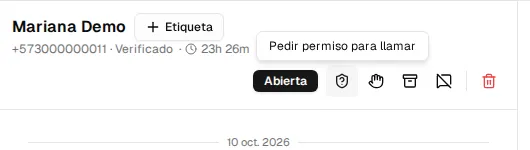
The button is not available when:
- More than 24 hours have passed since the customer’s last message (the permission request can only go out within the 24-hour window).
- You asked for permission recently: Meta allows one request every 24 hours.
- The customer did not authorize calls.
- There is already a call in progress.
When dialing, the bar shows Dialing… and Ringing…; if the customer does not answer or rejects it, it says so (No answer, Rejected).
In the history
Section titled “In the history”Every call stays in the customer’s thread: Call answered (with the duration), Missed call, outgoing calls and their outcome, permission requests and their answer, and the messages left in voicemail, which you can listen to right there.