

Roles & permissions
Users and staff
Create or invite users, assign them roles and manage their access in Inspow.
A User is anyone who signs in to Inspow within your Organization: your team (administrators, staff) and also your paying clients (guardians or account holders), who sign in to see their invoices, subscriptions and beneficiaries. What each one can do depends on their roles. They are in the Users menu.
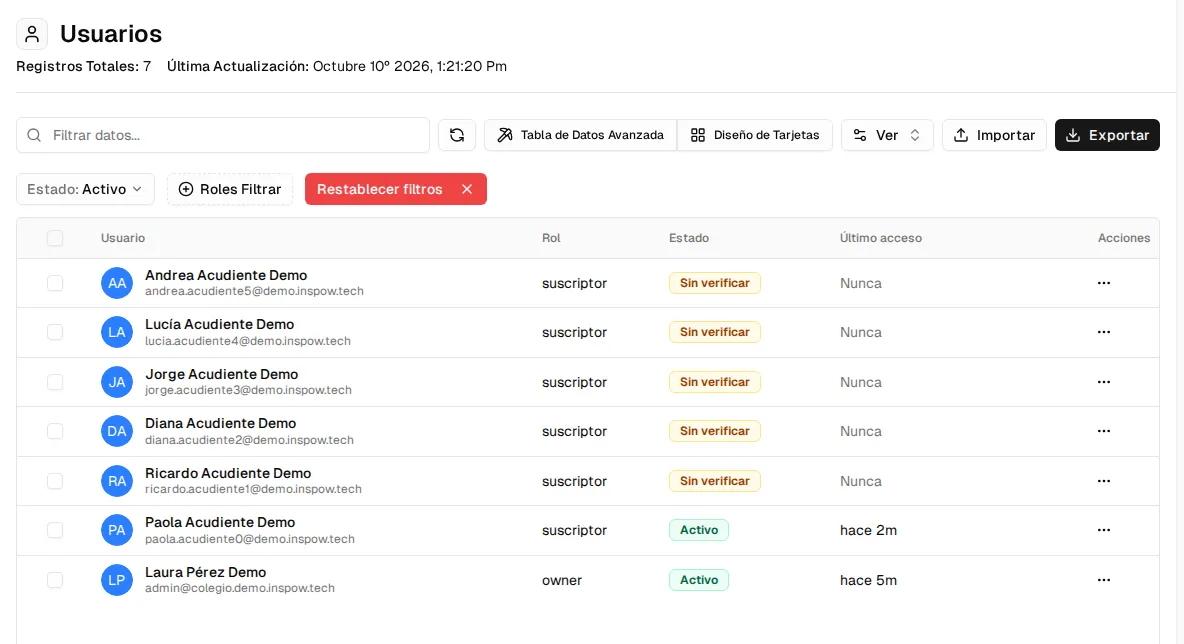
The list shows the Role, the Status (Active, Unverified…) and the Last login. By default you see the active users.
Add users
Section titled “Add users”Click Create User. The Add user dialog has two tabs:
Create manually
Section titled “Create manually”A four-step wizard:
- Account: email (unique in your Organization; it’s the username for signing in) and password (Generate button to create a secure one).
- Profile: first name, last name, mobile number, document type and number (CC, CE, Passport, TI or NIT), address and photo.
- Role: the roles they will have.
- Review: confirm the details and create the user.
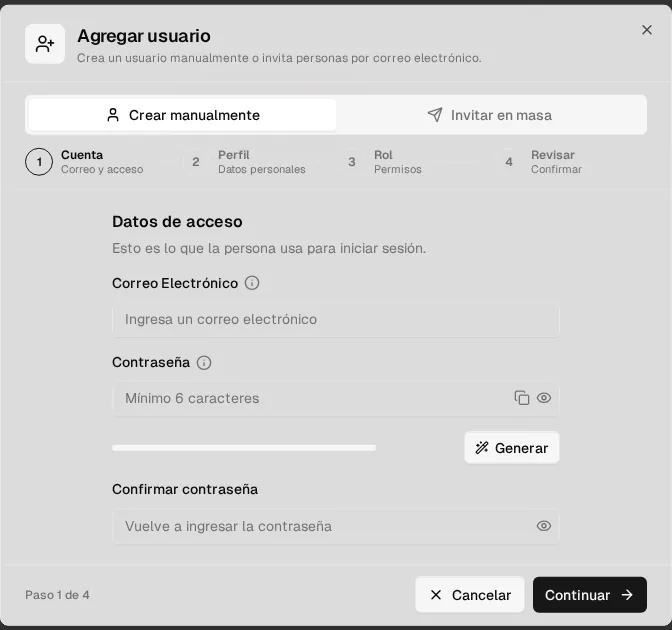
The password must be between 6 and 50 characters, with an uppercase letter, a lowercase letter and a number or symbol.
Invite in bulk
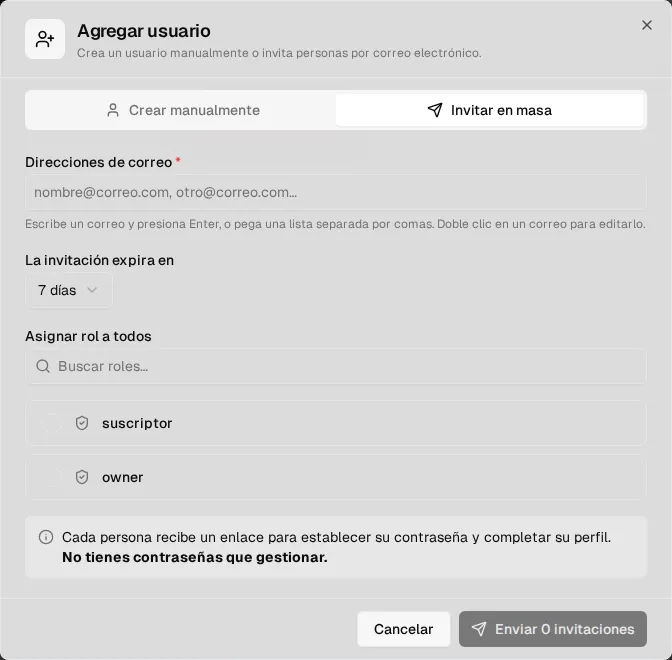
Section titled “Invite in bulk”Type or paste several emails (up to 200), choose when the invitation expires (3, 7 or 14 days, or never) and the role for all of them. Each person receives a link to create their password and complete their profile: you don’t have to handle passwords.
Invitations that haven’t been accepted yet appear in Pending invitations, where you can Resend, Cancel invitation or Export emails.
Edit, activate or deactivate
Section titled “Edit, activate or deactivate”Open a user to edit their Personal data, Account & security and Roles & permissions. In their panel you can also see whether they verified their email, whether they use two-factor authentication and their effective permissions.
| Status | Meaning |
|---|---|
| Active | Can sign in and work. |
| Inactive | Access suspended without deleting the account. |
When you select several users you can change their role, activate or deactivate them, Force logout or Send password reset.
Bulk upload
Section titled “Bulk upload”Import loads users from CSV, Excel or JSON (up to 500 per file, 5 MB, with a downloadable template; see Import members). Repeated emails are discarded. Export downloads the list.