

WhatsApp Agent
Orders and delivery
How the agent quotes delivery and registers orders over WhatsApp, and how your team confirms and dispatches them.
With the Orders tool enabled, the agent builds the order in the chat: it looks up the products in your price list, quotes delivery according to your zones and registers it in the system. Your team reviews it in WhatsApp Agent → Orders, confirms it and dispatches it.
Setting up zones and rates
Section titled “Setting up zones and rates”In Settings → Orders & delivery you define where you deliver and how much it costs. The agent quotes only with this data; if the zone list is empty, a person on your team confirms the rate.
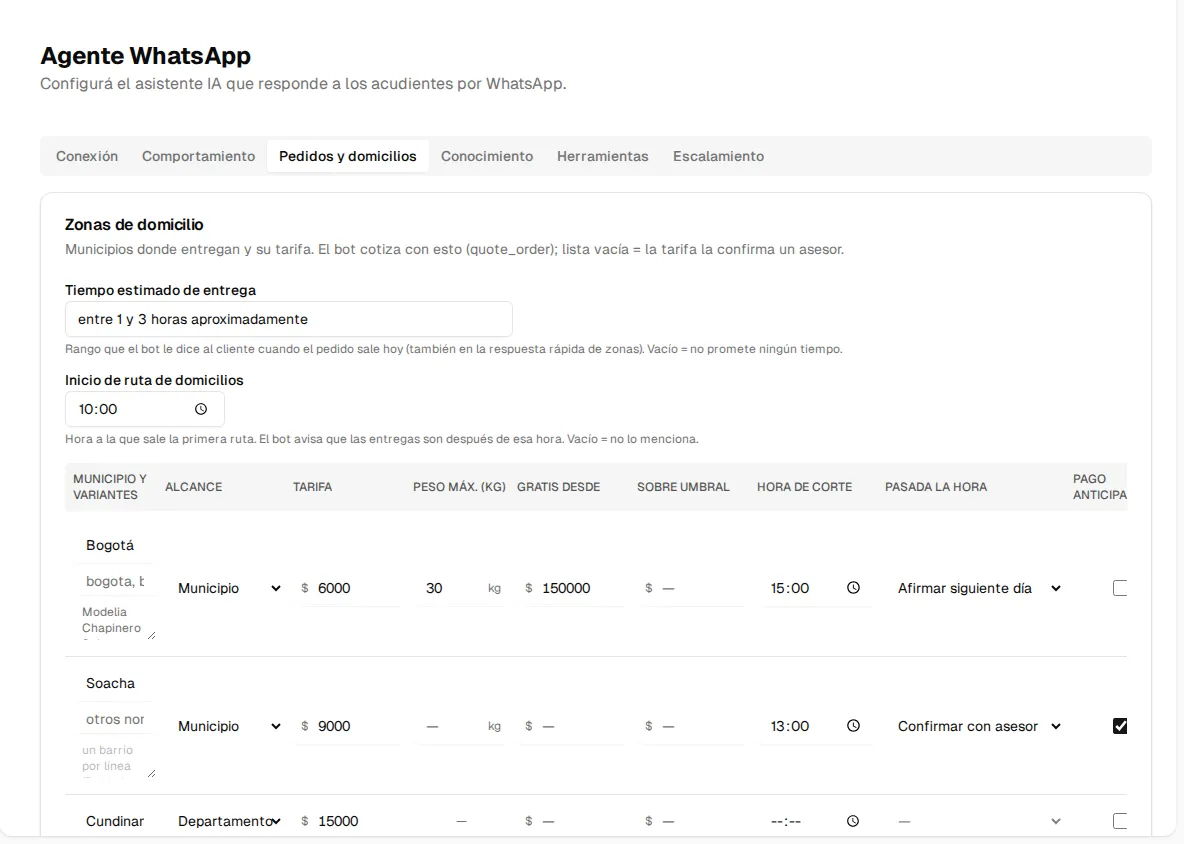
- Estimated delivery time: the range the agent tells the customer when the order goes out today (e.g. “in about 1 to 3 hours”). Empty = it promises no time.
- Delivery route start: the time the first route leaves; the agent mentions that deliveries happen after that time. Empty = it does not mention it.
Each row of the table is a zone:
| Column | What it defines |
|---|---|
| Municipality and variants | The name of the municipality, other names your customers write it with and, if you want, the neighborhoods in that zone (one per line). |
| Scope | Whether the row is a municipality, a department, national or non-major cities and rural areas (the fallback ones when the municipality is not on the list). |
| Rate | The delivery fee. With weight-based rates (brackets in kg), the flat rate is ignored; only the last bracket can be left open-ended (“and above”). |
| Max weight (kg) | Up to how many kilos your own delivery service handles in that zone. Above that, the agent quotes a carrier. |
| Free from / Above threshold | From what purchase amount delivery is free or has a reduced rate. |
| Cutoff time and After cutoff | Until what time the order goes out the same day, and what the agent does afterwards: confirm the next day or let an advisor confirm. |
| Prepaid only / Cash on delivery until | Whether the zone requires paying in advance, or up to what amount you accept cash on delivery. |
| Delivery (this zone) | An estimated time specific to the zone, which replaces the general one. |
| Note | A text the agent passes on to the customer for that zone (no figures). |
The table scrolls sideways: there are more columns than fit on the screen.
Sundays and holidays
Section titled “Sundays and holidays”An optional rule for the dispatch of orders placed on those days (the agent works as usual): what hours you work, up to what volume you dispatch the same day, from what purchase amount an order gets priority, and what happens with the rest (it goes out the next business day). The agent applies these rules only when quoting.
Payment QR
Section titled “Payment QR”Upload the payment QR image and the account details (bank, number, holder or Bre-B key). When the customer chooses to pay by QR, the agent sends the image in the chat with the account details as text below it.
How the customer orders
Section titled “How the customer orders”- They ask about a product; the agent looks it up in your price list and gives them the current price.
- When they ask for delivery, the agent asks for the municipality and the address, and quotes shipping with your zones.
- The customer chooses the payment method: cash (the agent asks how much they will pay with, so change can be brought), bank transfer or card terminal.
- The agent registers the order with a sequential number (#1, #2…) in the Awaiting confirmation status and tells the customer your team will verify it.
The orders screen
Section titled “The orders screen”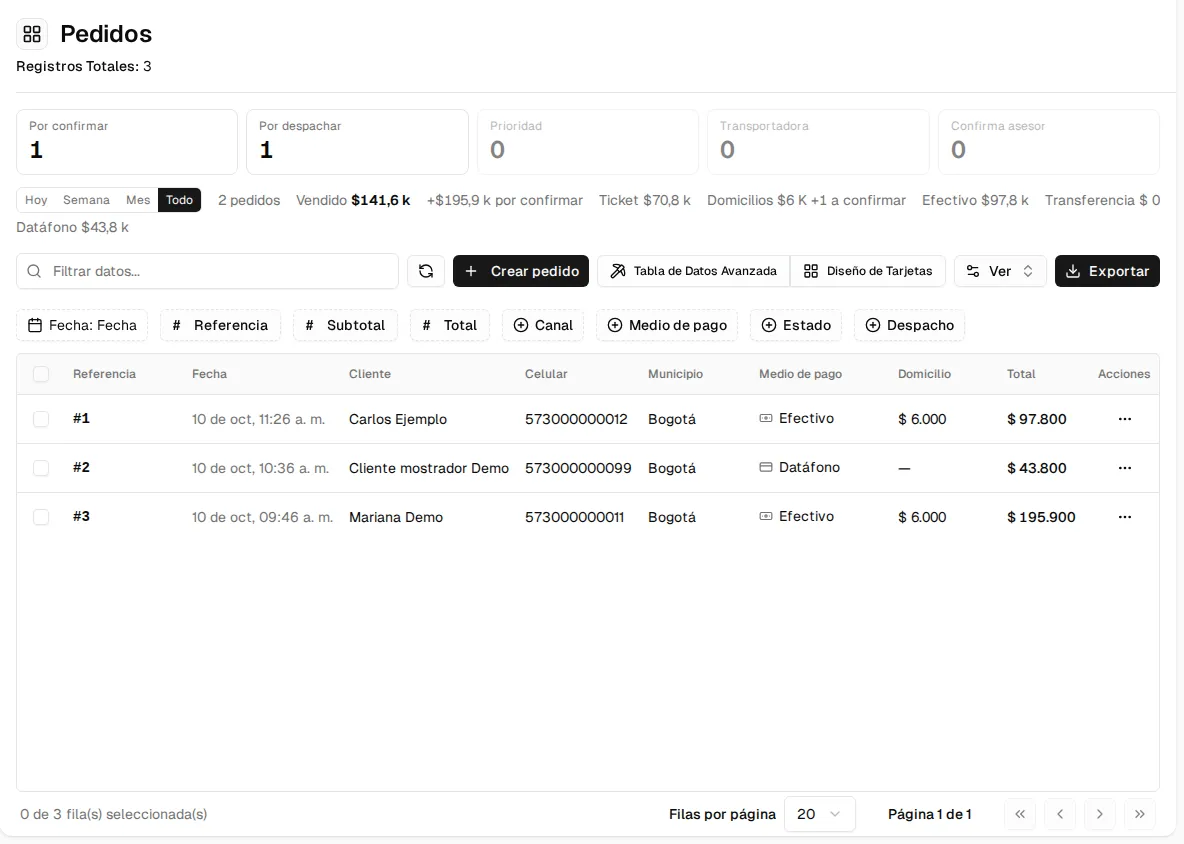
- Counters at the top: orders to confirm, to dispatch, with priority, by carrier and those an advisor confirms.
- Period summary (Today, Week, Month or All): number of orders, total sold, what is still awaiting confirmation, average ticket, deliveries and the total per payment method. If you filter the table by date, that filter takes precedence.
- Filters by date, reference, subtotal, total, channel (WhatsApp, manual, web), payment method, status and dispatch.
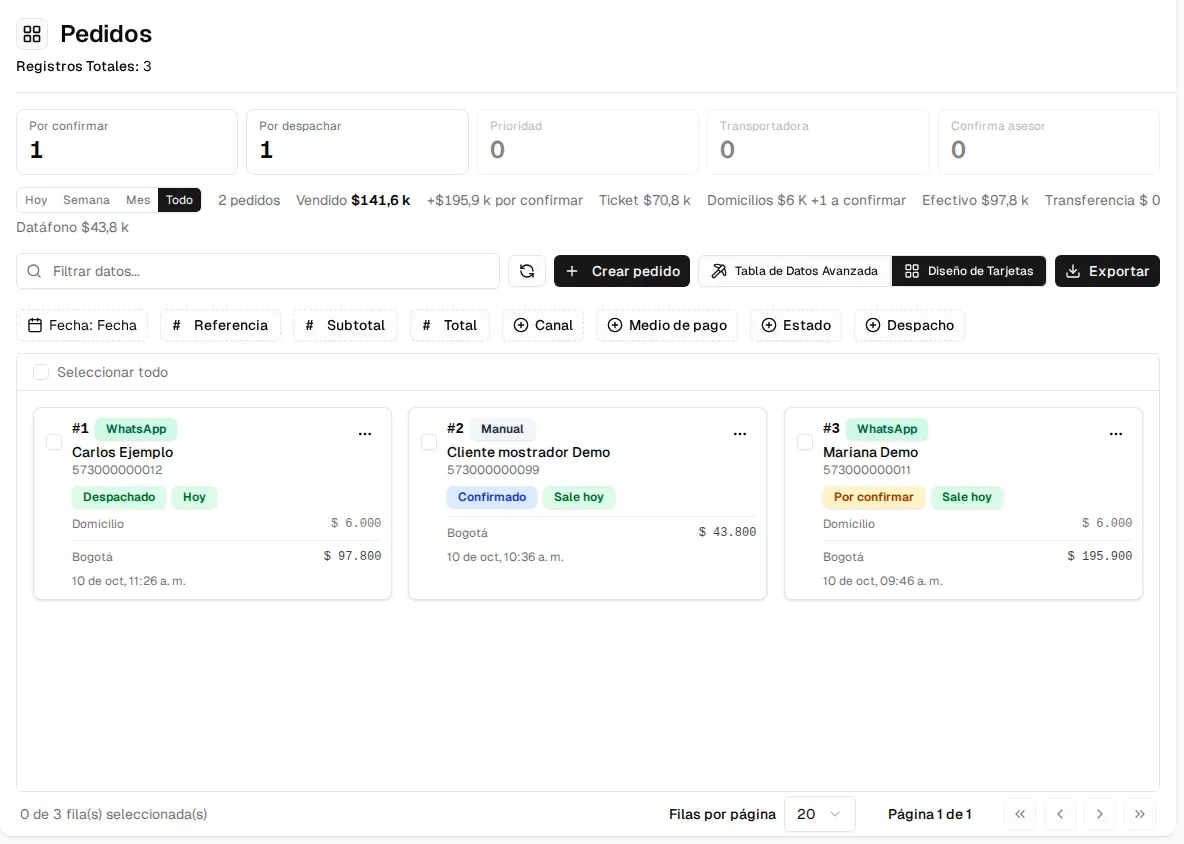
- Card layout: the same information in cards, with the channel, the status and when each order goes out.
- Create order: manually registers an order that came in through another channel (counter, phone call).
- Export downloads the list.
Confirming, dispatching or cancelling
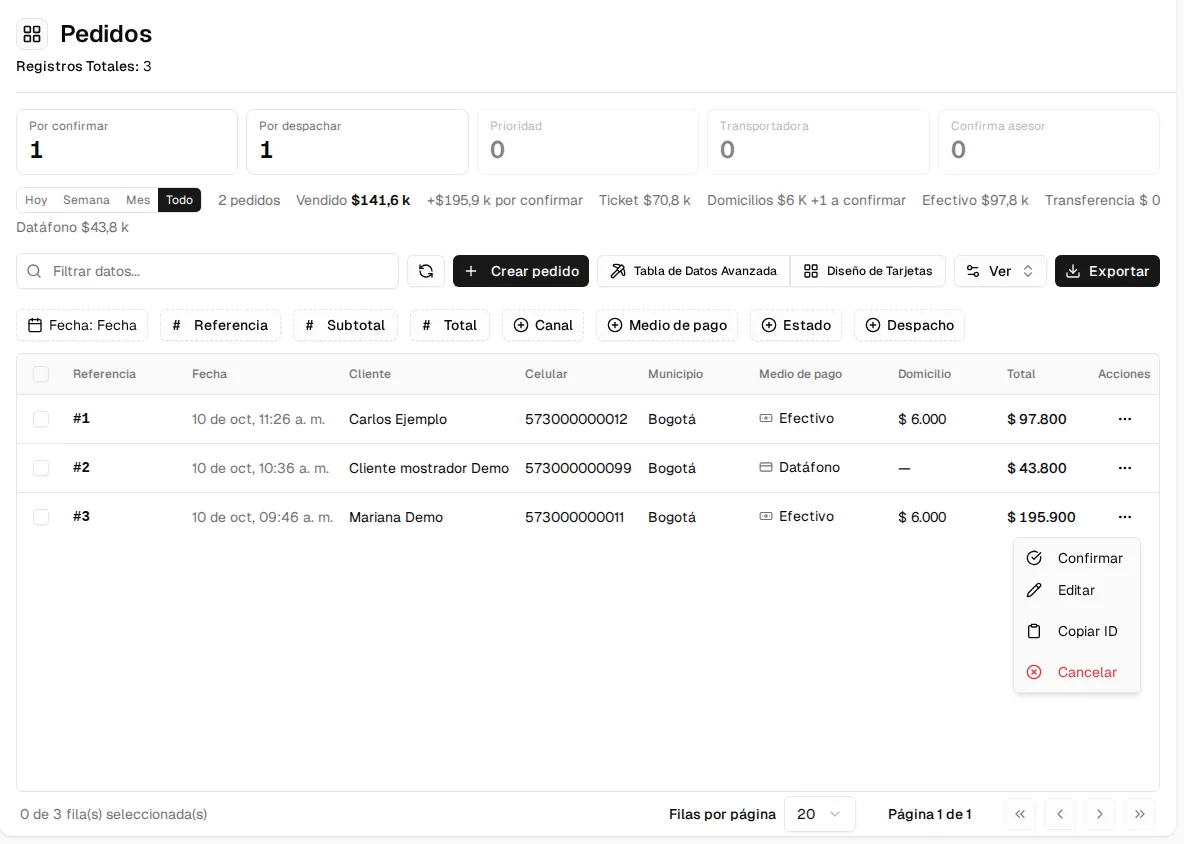
Section titled “Confirming, dispatching or cancelling”From each order’s ⋯ menu:
-
Confirm: your team verified the order (products, address, payment). It moves to Confirmed (to dispatch).
-
Dispatch: the order went out. It moves to Dispatched, which is a final status.
-
Cancel: only possible before dispatch.
When confirming and when dispatching, the customer gets an automatic notice on WhatsApp with the delivery day (for example, “it arrives today” or “it goes out the next business day”). If WhatsApp’s 24-hour window has already closed, the notice cannot go out: the screen tells you so, so you can write to the customer from the console.
Each order’s badges show its dispatch: Today, Next business day, Priority, Carrier or Advisor confirms, and they warn you if an ordered product has not enough stock. View conversation opens the chat where the order was placed.