

Members
Manage members
Create, edit, archive and filter your members (beneficiaries) in Inspow, and view their profile.
In Inspow, each person who receives your services is a Beneficiary. The person who pays and receives the notifications is a User (the guardian, account holder or responsible person; see Dependent beneficiaries). Depending on your sector, the menu names them differently:
- Restaurant / food service and School: Beneficiaries
- Gym: Members
- Academy: Students
- Club: Club members
- Coworking: Coworkers
- Clinic: Patients
The list
Section titled “The list”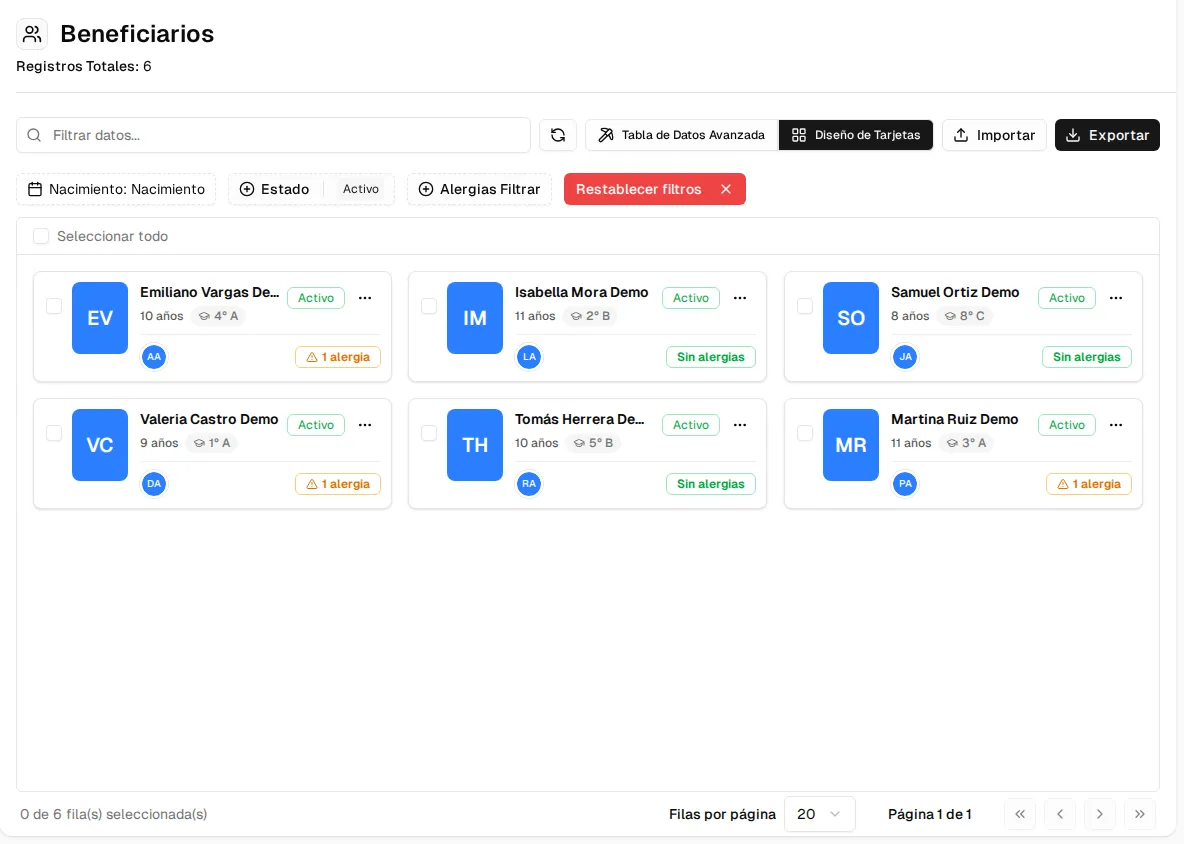
Each card shows the age, the grade, the responsibles and whether they have allergies. With Advanced DataTable you switch to a table with the columns Beneficiary, Grade, Age, Responsibles, Allergies and Status.
- Search by first name, last names or grade.
- Filter by date of birth, Status and allergies. By default you only see the active ones.
- Import and Export (see Import members and Export data).
Create and edit
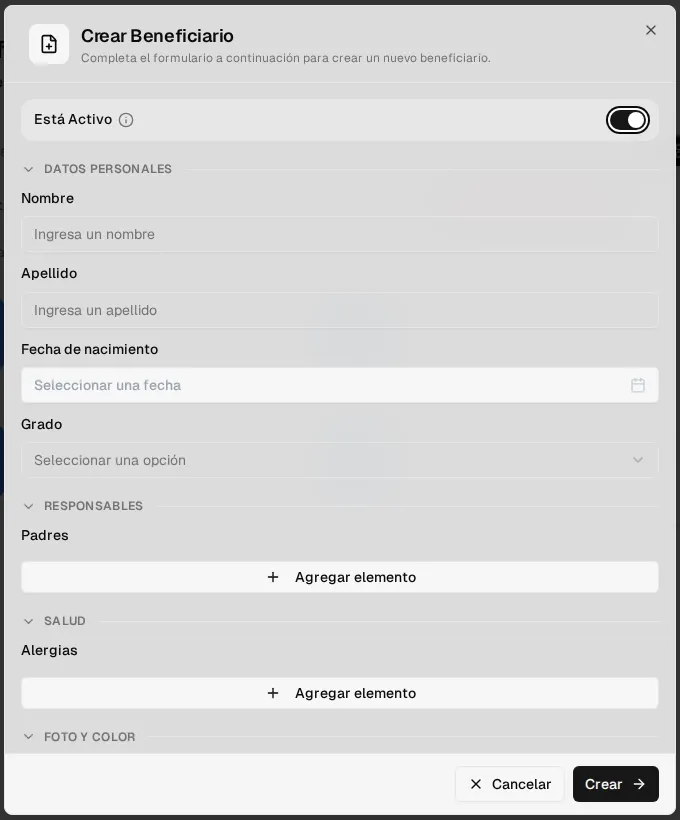
Section titled “Create and edit”Click Create Beneficiary. The form has four sections:
- Personal details: First name (required), Last name, Date of birth and Grade (Preschool, Primary, Secondary or Other).
- Responsibles: one or more responsible Users, each with their relationship (see Dependent beneficiaries).
- Health: one or more allergies, each with its severity and optional notes.
- Photo and color: profile picture (PNG, JPG or WEBP) and a color to identify them in the lists.
At the top is the Is Active switch.
To change it, open its card (or Edit in its menu), change what you need and click Save. At the top of the edit form you can see who created or edited it and when.
The profile
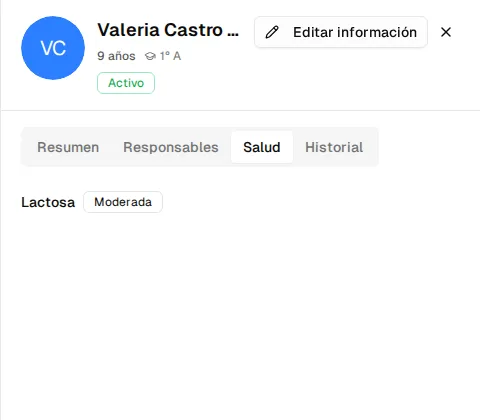
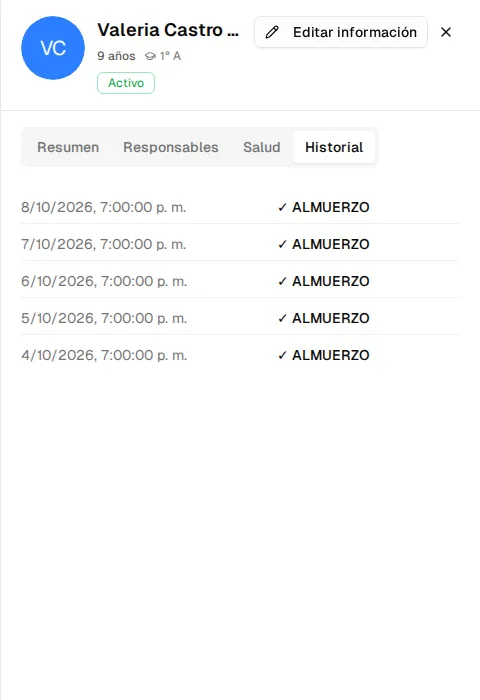
Section titled “The profile”From the ⋯ menu on each card, View profile opens a read-only panel with four tabs:
- Summary: status, grade and how many responsibles and allergies they have.
- Responsibles: who is in charge and with what relationship.
- Health: their allergies with their severity.
- History: their attendance records, from most recent to oldest (Load more loads the earlier ones).
The Edit information button opens the form.
Actions on each beneficiary
Section titled “Actions on each beneficiary”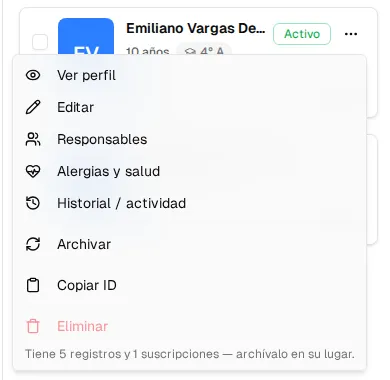
Responsibles, Allergies & health and History / activity open the profile directly on that tab.
If you select several cards, the selection bar lets you Change grade, Change status or Archive all of them at once.
Statuses
Section titled “Statuses”| Status | Meaning |
|---|---|
| Active | The normal status. It’s the one the list shows by default. |
| Inactive | You set it (the Is Active switch turned off); it is kept with all its history. |
| Archived | Removed from day-to-day operations with the Archive action; it is restored with Reactivate. |