

Members
Import members
Bulk upload of beneficiaries (members) from a CSV, Excel or JSON file in Inspow.
Bulk import lets you add many beneficiaries at once from a file, instead of creating them one by one. It’s the recommended way when you migrate your database of people to Inspow or bring in a large group at once.
The mechanism is common to the whole platform: the same Import button appears on other lists (for example Users or Ingredients), each with its own template. You need permission to create records in that list.
Step by step
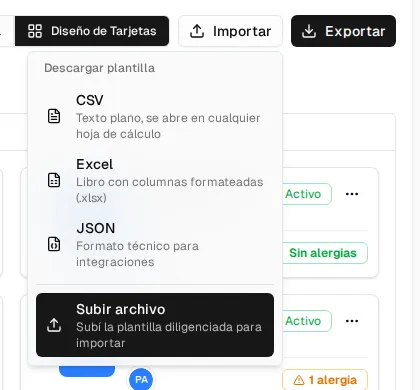
Section titled “Step by step”- On the beneficiaries list (or Members, Students, Club members, Coworkers or Patients, depending on your sector), click Import.
- In Download template, choose CSV, Excel (
.xlsx) or JSON. The template comes with the right columns and an example row. - Fill in the template and go back to Import → Upload file.
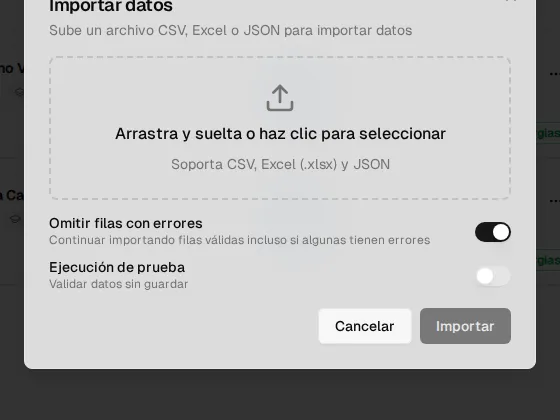
- In the Import data dialog, drag the file (5 MB maximum), choose the options and click Import (or Validate, if it’s a test).
Prepare the file
Section titled “Prepare the file”Each row is a beneficiary and each column, one of their details:
- First Name (required): first name.
- Last Name: last names.
- Birthdate: date of birth; use the
YYYY-MM-DDformat to avoid confusion. - Grade: grade.
- Allergies: allergies, several separated by commas.
For a clean upload:
- A single header row with those names (upper or lower case doesn’t matter).
- One person per row, with no empty rows in between.
- Save the CSV in UTF-8 so accents and special characters are preserved.
- A maximum of 500 rows per file; if it has more, the whole file is rejected.
Validation and result
Section titled “Validation and result”When it finishes you see the Import results (or Validation results if it was a test): the success percentage, the total number of rows, how many were imported and how many had errors, with the details of the first 20 errors (row and reason).
Common errors
Section titled “Common errors”- Missing first name: the row has no First Name; it is marked as an error.
- Invalid format: a date that can’t be interpreted.
- Columns with a different name: columns it doesn’t recognize are ignored without warning; check that the header matches the template.