

Getting started
Verify your email
Confirm your email address to secure your Inspow account.
Inspow asks you to verify your email to confirm that your account’s address is yours. Verifying it helps keep your account secure and ensures you receive your important alerts.
The verification notice
Section titled “The verification notice”While your email isn’t verified, you’ll see a yellow notice at the top of the app. The notice doesn’t block anything: you can keep using Inspow normally, but we recommend verifying as soon as possible.
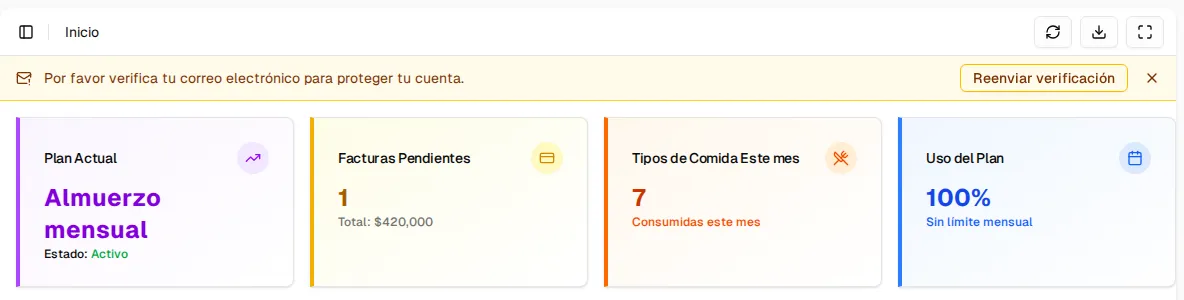
If you close the notice with the X, it is hidden for the rest of that browser session; it appears again the next time you sign in, until you verify the email.
Verify your email
Section titled “Verify your email”- Open the verification email Inspow sent you.
- Press the link to confirm your address.
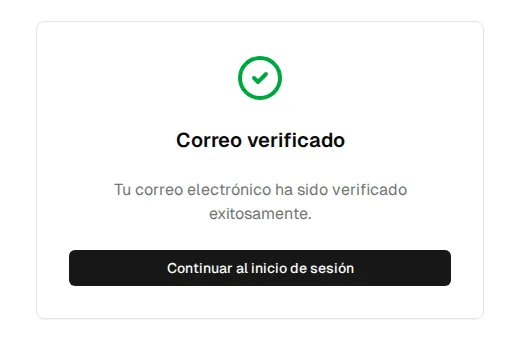
- You’ll see the Email verified screen. Press Continue to login.
If you don’t receive the email
Section titled “If you don’t receive the email”From the notice, press Resend verification. The notice changes to Verification email sent.

Also:
- Wait a few minutes: delivery can take a while.
- Check your spam or junk folders.
- Confirm that your account’s email is spelled correctly (you can see it in Account). If it’s wrong, ask your organization to fix it: you can’t change it yourself.