

My membership
My invoices
Check your invoices, their status and due date, download the PDF and upload a payment proof.
Each period of your Subscription generates an Invoice. From Invoices, in the menu, you see all of yours, their payment status and their due date, and you can download or pay them.
The list of invoices
Section titled “The list of invoices”Each row shows the Invoice Code (for example INV-258838), the Status, the
Subscription (who pays and for which beneficiary), the Plan with its price and the
Due Date. The date tells you how much time is left (“In 6 days”) or, in red, how many days
late an unpaid invoice is.
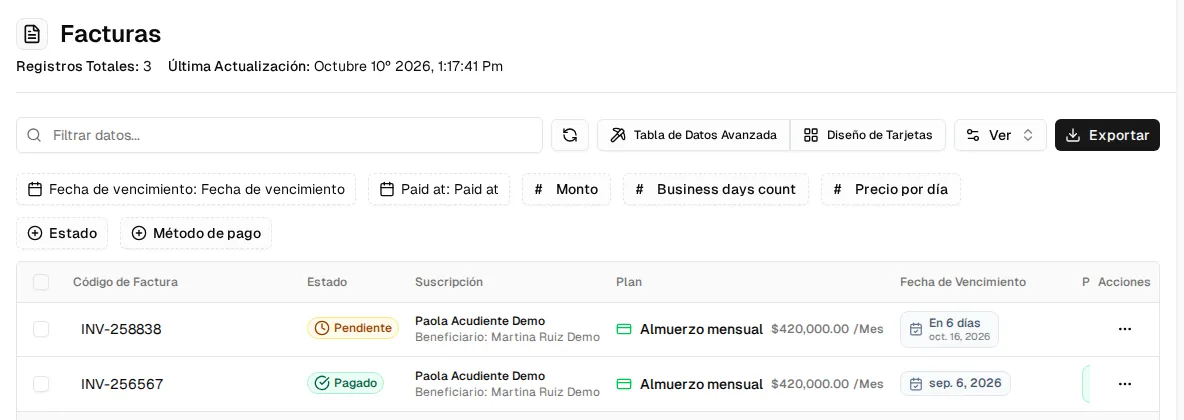
You can search with Filter data…, filter by Status, Payment Method or dates and Export the list. On Home, the Pending Invoices card tells you how many you have left to pay and for how much.
Invoice statuses
Section titled “Invoice statuses”| Status | Meaning |
|---|---|
| Pending | Issued and waiting for payment. |
| Review | You uploaded a payment proof and your organization is reviewing it. |
| Paid | The payment was confirmed. |
| Failed | The online payment was rejected. |
Invoice actions
Section titled “Invoice actions”With the row’s ⋯ button:
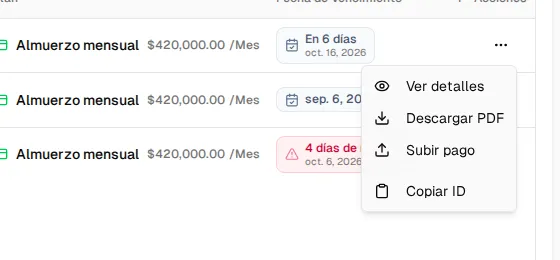
| Action | What it’s for |
|---|---|
| View details | Opens the details: invoice and payment status, your details, the plan, the amount and the payment reference. |
| Download PDF | Downloads the invoice as a PDF. |
| Upload payment | Only on Pending invoices: attaches the proof of a transfer. |
| Pay with Wompi | Only on Pending invoices and if your organization has online payment turned on. |
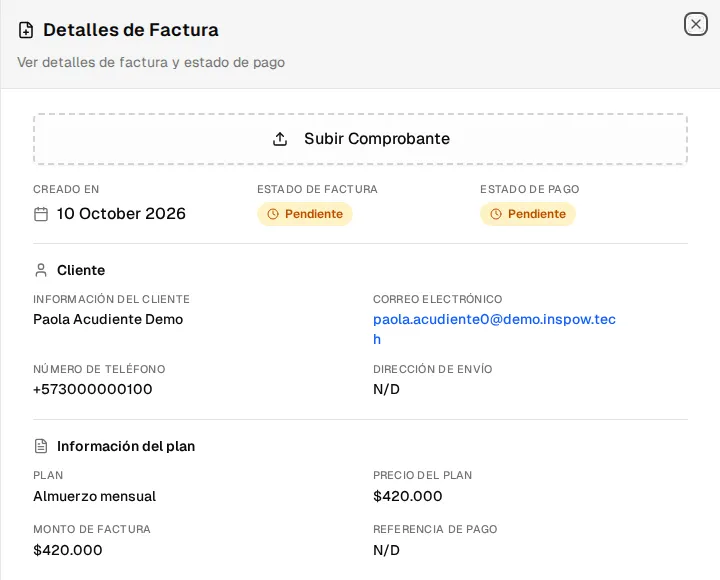
The steps to pay are in Payment methods.