

My membership
My subscriptions
Check your subscriptions, their status and their QR code, and confirm or cancel a subscription in Inspow.
A Subscription links a person —you or a Beneficiary in your care— with a Plan from your Organization for a period with a start and an end date. While it is in force, Inspow generates its invoices.
See your subscriptions
Section titled “See your subscriptions”In the menu, go to Subscriptions. You’ll only see yours: each row shows the paying User (you), the Beneficiary, the Plan with its price and frequency, the Status and the start and end dates. On your phone they are shown as cards.
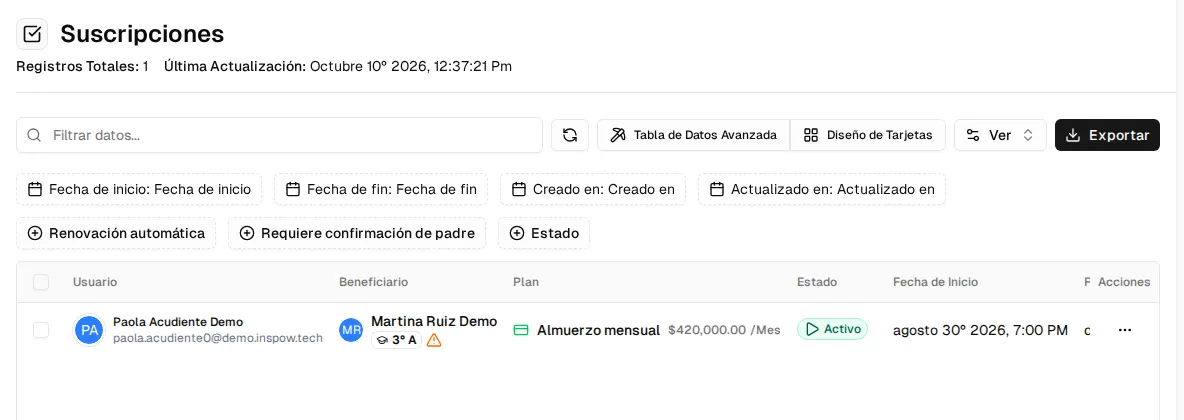
You can search with Filter data…, filter by status or dates, switch to Card Layout and Export the list.
Subscription actions
Section titled “Subscription actions”With the row’s ⋯ button you open the actions menu:
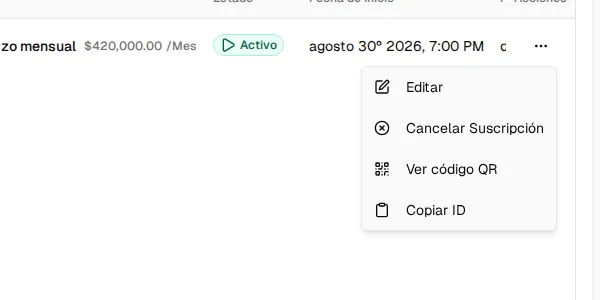
| Action | What it’s for |
|---|---|
| View QR Code | Shows the beneficiary’s QR code for registering attendance. See Register attendance. Only on active subscriptions. |
| Confirm Parent | Only appears if the subscription is waiting for your confirmation (see below). |
| Cancel Subscription | Cancels the subscription (see below). |
| Edit | Opens the subscription form. If you need to change the plan or the dates, arrange it with your organization. |
Subscription statuses
Section titled “Subscription statuses”| Status | Meaning |
|---|---|
| Draft | It is being prepared and is not in force yet. |
| Pending Parent Confirmation | Waiting for the guardian to confirm it. |
| Pending Payment | Confirmed; it is activated when the first invoice is paid. |
| Active | In force. |
| Suspended | On hold: no new periods are invoiced. |
| Cancelled | Cancelled; it is no longer invoiced. |
| Expired | Finished. |
Does it renew on its own?
Section titled “Does it renew on its own?”The subscription invoices each period of its plan (for example, every month) until its end date. To continue after that date, your organization must extend it or create a new one. If you see the Auto Renew column, take it as a reference only: your organization is the one who decides whether it continues.
Confirm as a guardian
Section titled “Confirm as a guardian”Some subscriptions —usually when the beneficiary is a minor— need the guardian to confirm them before they can be paid:
- The subscription starts in Pending Parent Confirmation.
- You get an email with a link to Subscription Confirmation, where you review the plan, beneficiary, dates and price and press Confirm Subscription. You can also do it from the list, with ⋯ → Confirm Parent.
- Once confirmed, it moves to Pending Payment.
Cancel a subscription
Section titled “Cancel a subscription”⋯ → Cancel Subscription opens a dialog where you must write the Cancellation Reason (and, if you want, notes). Confirm with Cancel Subscription or go back with Keep Subscription.