

My membership
Payment methods
How to pay your invoices in Inspow — online or by uploading a transfer payment proof — and what to do if a payment fails.
When your Subscription generates an Invoice with the Pending status, you can pay it in two ways: online (if your organization has it turned on) or by transfer, uploading the payment proof for the organization to review.
Both options are in the invoice’s ⋯ menu, in My invoices, and they only appear while the invoice is Pending.
Pay online
Section titled “Pay online”If your organization turned on online payment, you’ll see Pay with Wompi in the invoice menu. The gateway opens with your invoice’s amount and reference; there you choose the method (for example card, PSE or Nequi, depending on what the gateway offers). The payment link is valid for a limited time.
When the payment is approved, the invoice becomes Paid on its own and, if it was the first payment, your subscription is activated.
Upload a transfer payment proof
Section titled “Upload a transfer payment proof”- On the Pending invoice, open ⋯ → Upload payment (or Upload Proof in the details).
- Choose the payment proof file (image or PDF, up to 10 MB) and, if you want, write a note.
- Press Upload Proof.
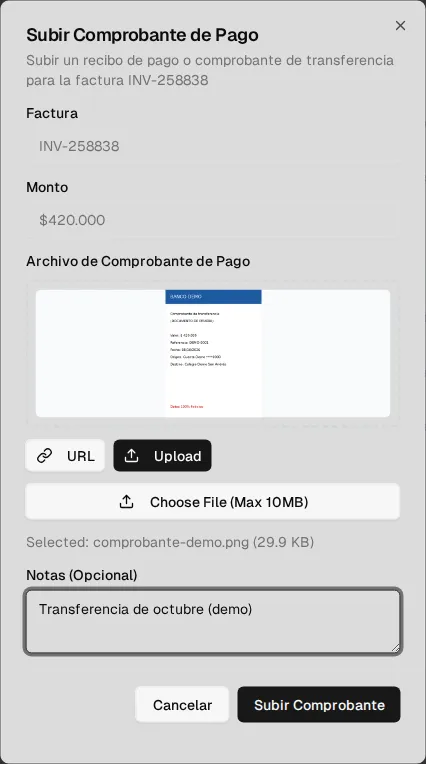
The invoice moves to Review and you get the Payment under review notification. When your organization accepts it, the invoice becomes Paid. If it rejects it, you get a notification with the reason.
If a payment fails
Section titled “If a payment fails”If the gateway rejects the payment, the invoice is marked Failed and the reason is saved in the details. Check the funds or the payment method details and contact your organization: from the app you can only pay or upload a payment proof on Pending invoices.
| Status | Meaning |
|---|---|
| Pending | Invoice waiting for payment. |
| Review | Payment proof being reviewed by your organization. |
| Paid | Payment confirmed. |
| Failed | The online payment didn’t go through. |