

Getting started
Sign in
How to sign in to Inspow with your email and password, with Google or Microsoft, and what happens if you belong to several organizations.
To get into Inspow you use the email your Organization registered you with. Your account is always associated with a specific Organization, so access happens within it.
Sign in with email and password
Section titled “Sign in with email and password”Signing in has two steps:
-
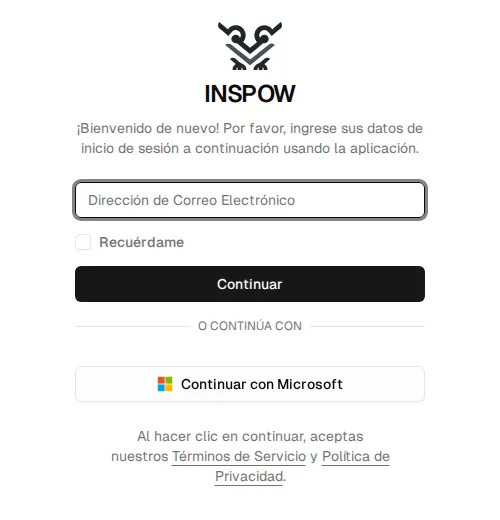
Type your email and press Continue. If you check Remember me, the browser will remember your email next time.
-
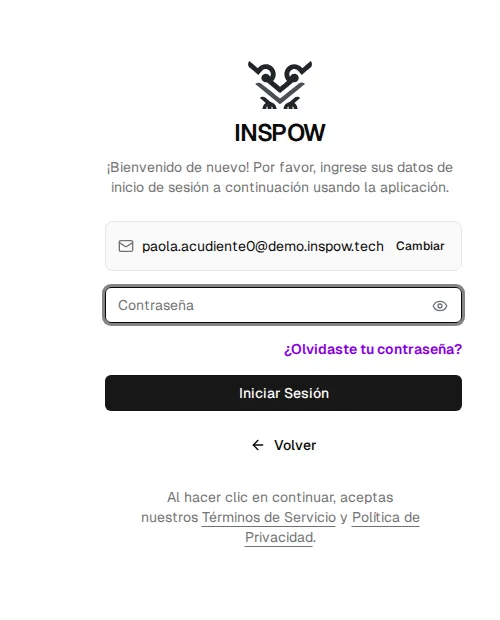
Type your password and press Login. With the eye icon you can see what you typed. If you picked the wrong email, press Change or Back.
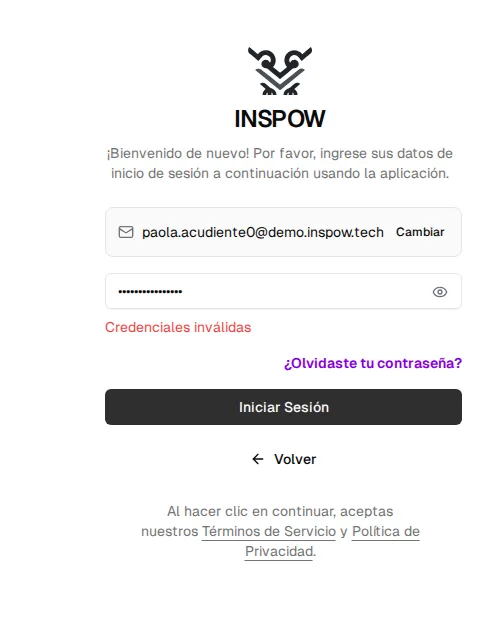
If the email or the password is not correct, you’ll see Invalid credentials. Check them or use Forgot password? (Recover your password).
Access with Google or Microsoft
Section titled “Access with Google or Microsoft”Below Or continue with you can sign in with your Google or Microsoft 365 account (corporate or educational accounts) instead of typing a password. Inspow uses that account’s email to identify you within your Organization, so it must be the same email you were registered with.
If you have two-step verification on
Section titled “If you have two-step verification on”If you turned on two-step verification (2FA), after the password Inspow will ask for the 6-digit code from your authenticator app. See Two-step verification.
If your email belongs to several organizations
Section titled “If your email belongs to several organizations”The same email can be registered in more than one Organization (for example, if your
children study at two schools that use Inspow). In that case, after typing the email you’ll
see the list of organizations —each with its name and its address
(name.inspow.tech)— so you can choose which one to enter. If you sign in from your
organization’s own page, that step is skipped.
Organization status
Section titled “Organization status”When you sign in, your Organization’s status is checked:
| Status | What it means for access |
|---|---|
| Active | Normal access. |
| Trial | Normal access while the Organization is in its trial period. |
| Suspended | You can’t get in. Your Organization must contact support to reactivate it. |
| Closed | The Organization’s account was permanently closed. |
Sign out
Section titled “Sign out”Open your user menu (bottom left, with your name) and choose Sign out. On your phone it is in the More menu. Always sign out on shared devices.