

Getting started
Recover your password
How to reset your password in Inspow if you forgot it or want to change it.
If you forgot your password —or want to change it— you can create a new one yourself through your email, without contacting your Organization. The process has two steps: request the link and create the new password.
Step 1: Request the link
Section titled “Step 1: Request the link”- On the sign-in screen, type your email and press Continue.
- In the password step, press Forgot password?.
- You’ll see Reset your password with your email already filled in. Press Send Reset Link.
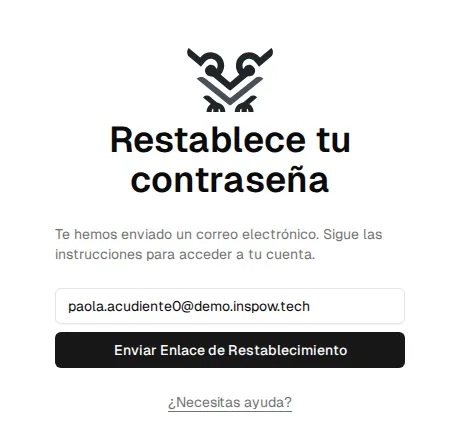
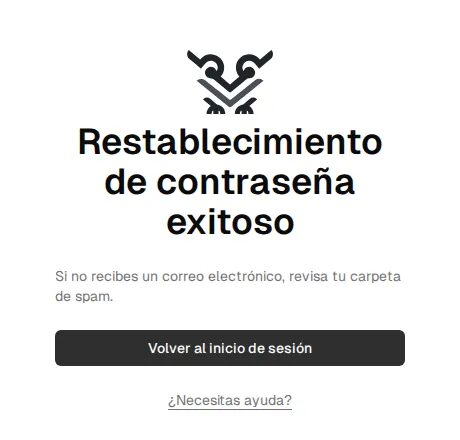
Inspow confirms the link was sent and reminds you to check your spam folder. From there you can go Back to login.
Step 2: Create your new password
Section titled “Step 2: Create your new password”Open the email and follow the link. You’ll see Create New Password: type the password twice. Below each field, Inspow shows which requirements you already meet and whether the two passwords match.
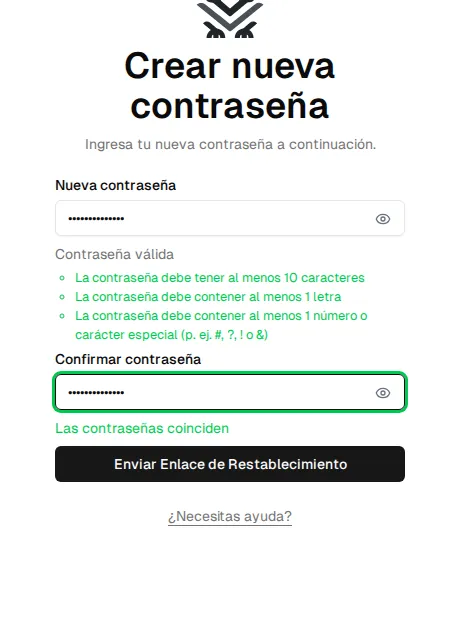
| Requirement | Value |
|---|---|
| Minimum length | 10 characters |
| Letters | At least one uppercase and one lowercase letter |
| Number or symbol | At least one (for example #, ?, ! or &) |
| Link validity | 1 hour from when you requested it |
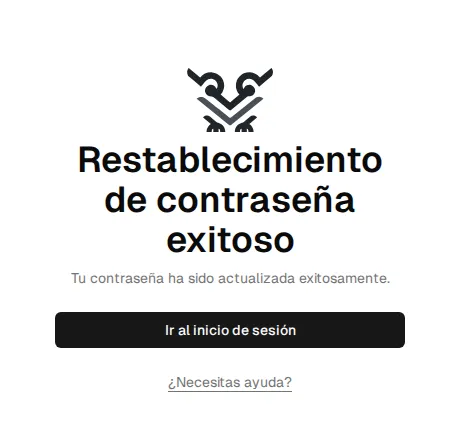
Confirm with the button at the bottom. When you finish you’ll see that your password was updated; press Go to Login and sign in with the new one.
If you don’t receive the email
Section titled “If you don’t receive the email”- Wait a few minutes: delivery can take a while.
- Check your spam or junk folders.
- Confirm that you typed your account’s email correctly.
- Request the link again from Step 1.