

Account & notifications
Two-step verification (2FA)
Turn on two-step verification in Inspow to protect your account with an extra code when you sign in.
Two-step verification (also called 2FA or two-factor authentication) adds an extra layer of security to your Inspow account. Besides your password, when you sign in it will ask for a 6-digit code generated by an app on your phone. Even if someone knows your password, they won’t be able to get in without that code.
It’s optional, but highly recommended.
What you need
Section titled “What you need”An authenticator app on your phone. The most common free ones:
- Google Authenticator
- Microsoft Authenticator
- Authy
Any of them works; install the one you prefer before you start.
Turn on two-step verification
Section titled “Turn on two-step verification”-
Open Account (your user menu → Account) and scroll down to the Security → Two-factor authentication section.

-
Press Enable 2FA. A QR code will appear.
-
Open your authenticator app and scan the QR code (“Scan code” or ”+” option).
-
The app will show a 6-digit code that changes every few seconds. Type it in the
000000field and press Enable. If you change your mind, press Cancel.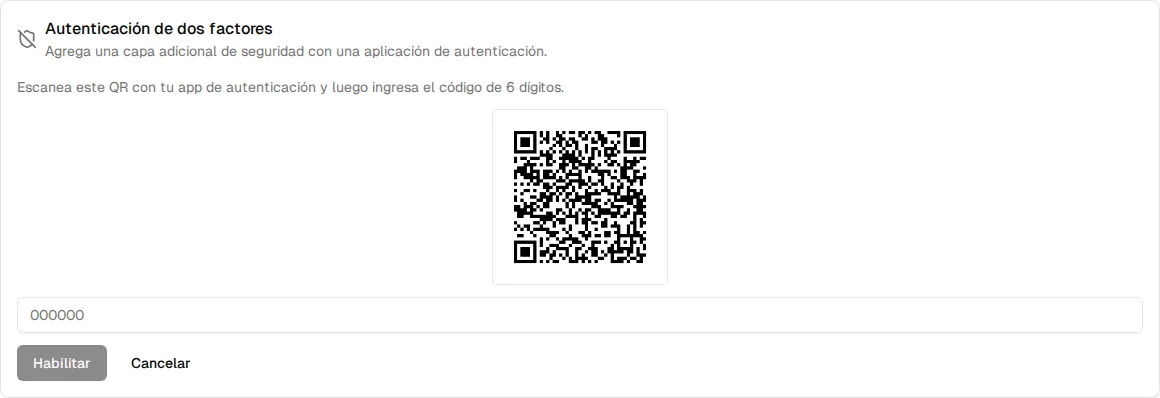
Save your backup codes
Section titled “Save your backup codes”When you turn on 2FA, Inspow shows you 10 backup codes only once. Once you have saved them, press I’ve saved my codes.
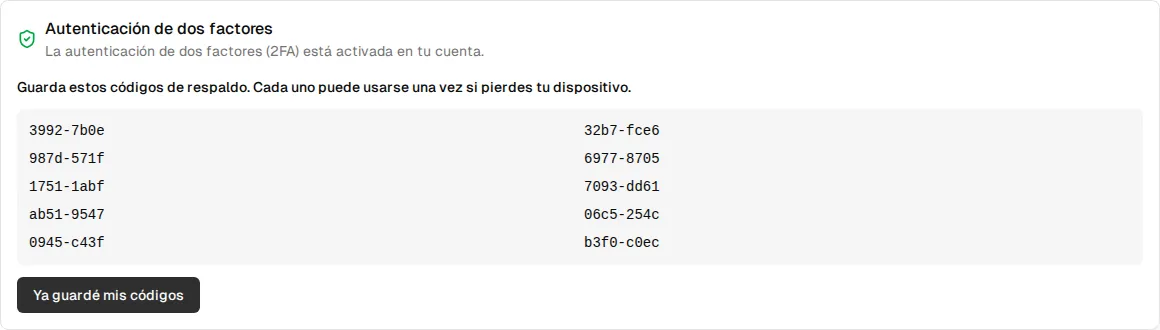
Each backup code works only once: once used, it can’t be used again.
Sign in with 2FA on
Section titled “Sign in with 2FA on”- Type your email and password as usual.
- Inspow will ask for the 6-digit code. Open it in your authenticator app, type it and press Verify.
- If you don’t have your phone at hand, press Use a backup code and enter one of the ones you saved.
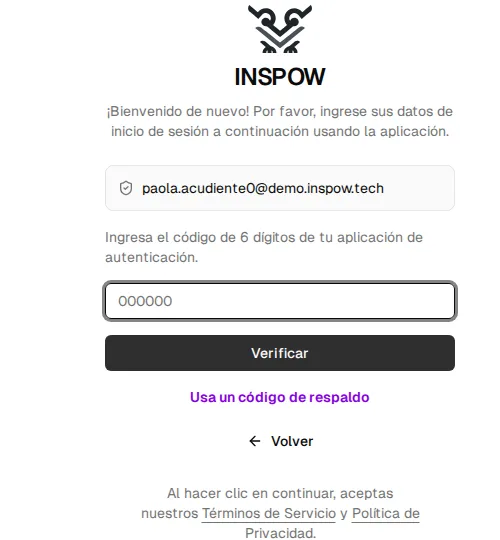
Turn off two-step verification
Section titled “Turn off two-step verification”With 2FA on, the section shows 2FA is enabled on your account. To turn it off, type a code from your authenticator app in Enter a code to disable and press Disable 2FA.

I lost my phone and my backup codes
Section titled “I lost my phone and my backup codes”If you have neither your phone nor your backup codes, you won’t be able to get in on your own: that is exactly what two-step verification prevents. Recovering your password doesn’t remove it either. In that case, contact your Organization: the case is escalated to Inspow support, which will verify your identity before giving you access back. Afterwards you can turn it on again with a new phone.