Account & notifications
Your account's security
How to change your password, sign out and keep your Inspow account secure.
As an Inspow User, your account gives access to your personal information, your Subscriptions, your Invoices and the data of the people in your care. Keeping it secure depends above all on a good password, two-step verification and signing out when appropriate.
Change your password
Section titled “Change your password”Inspow has no option to change the password from inside the account. To change it —whether you remember it or not— use the email link:
- Sign out.
- On the sign-in screen, type your email, press Continue and then Forgot password?.
- Follow the link you receive by email and create the new password.
The step-by-step guide, with screenshots, is in Recover your password.
New password requirements
Section titled “New password requirements”| Requirement | Value |
|---|---|
| Minimum length | 10 characters |
| Uppercase letter | At least one |
| Lowercase letter | At least one |
| Number or special character | At least one |
Lockout after failed attempts
Section titled “Lockout after failed attempts”If someone (or you) types the password wrong 5 times in a row, the account is temporarily locked (from 1 minute up to 2 hours if the failures continue) and you get a warning email. If it wasn’t you, change your password as soon as you can.
Two-step verification
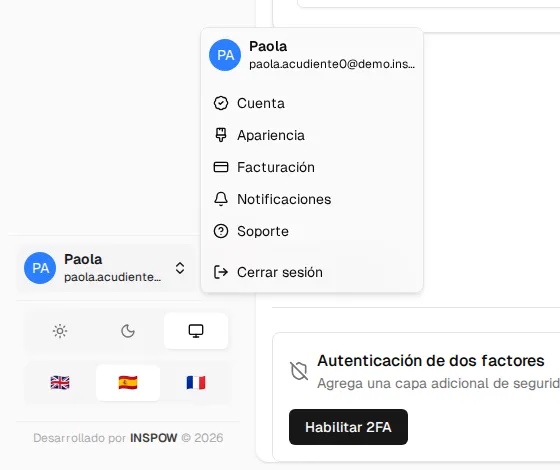
Section titled “Two-step verification”For an extra layer of security, turn on two-step verification: besides the password, Inspow will ask you for a code from your phone. See Two-step verification.
Sign out
Section titled “Sign out”Open your user menu (bottom left, with your name) and press Sign out. On your phone, go to More and press Sign out. Always sign out on shared or public devices.